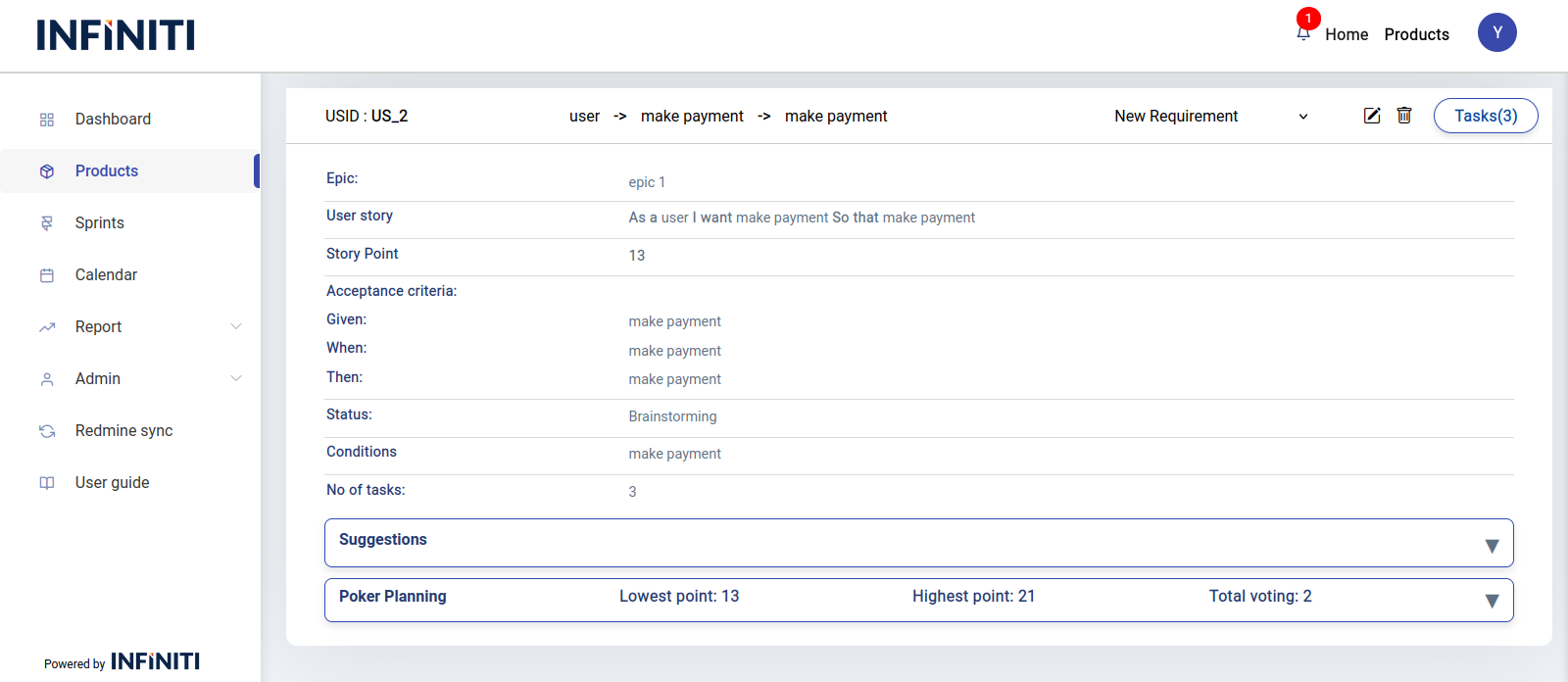
- User stories are short, simple descriptions of a feature or functionality from the end user’s perspective. They focus on what the user needs and why, helping guide development and ensure the delivered product meets user needs.
- The user story page will display the list of user stories for the respective backlog item.
- We can view the user stories page by two ways
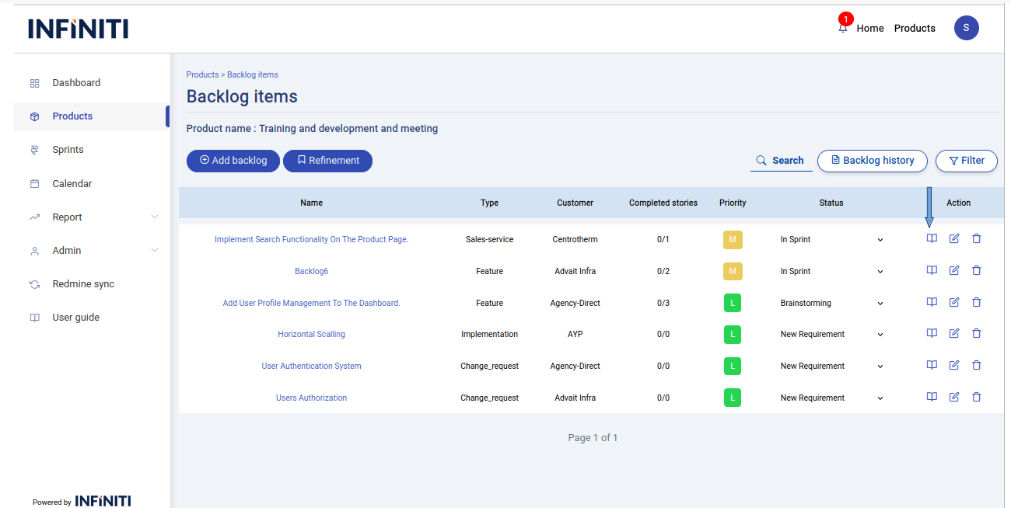
By clicking the below book icon in backlog items view page the user stories page of a particular backlog item will be displayed.
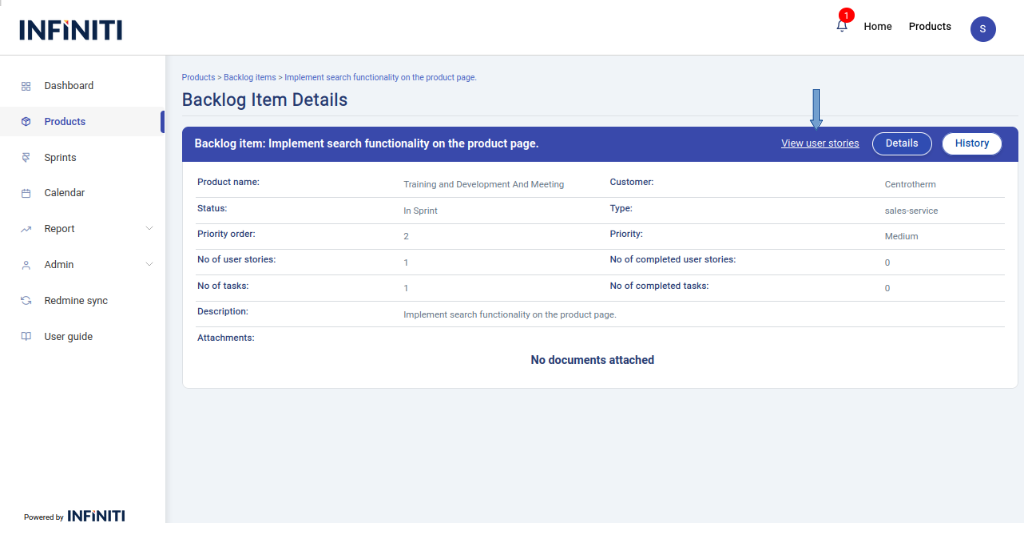
- By clicking the below mentioned link the user stories page will be displayed.
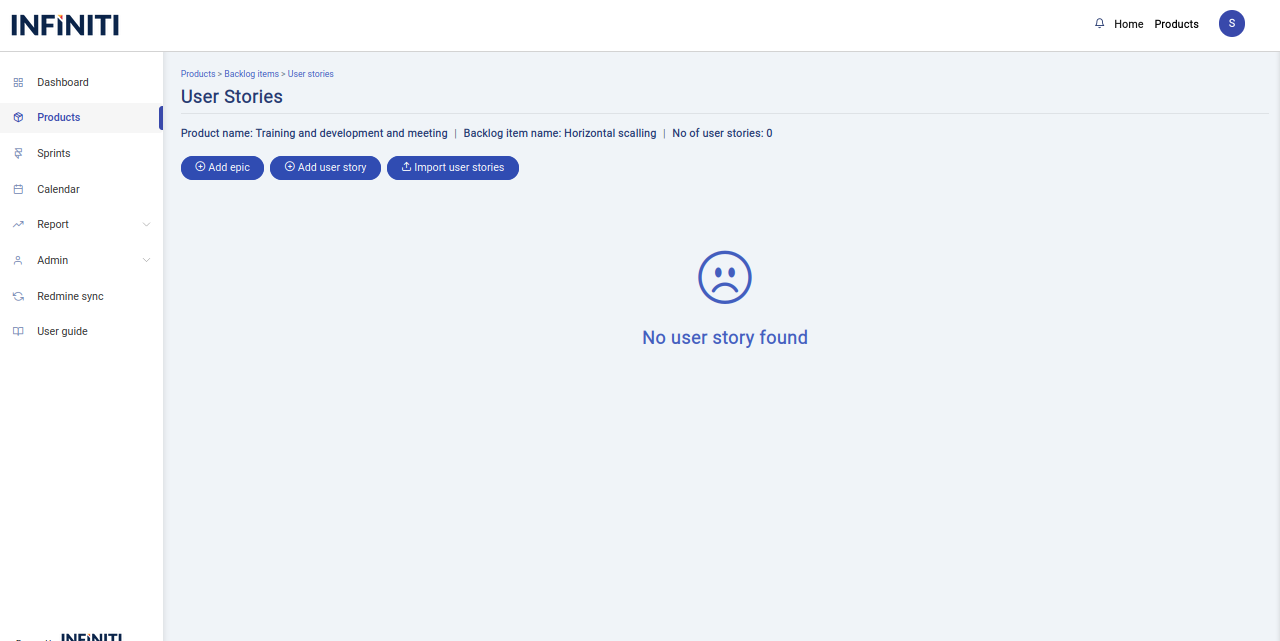
- The page given below is the user stories page for the corresponding backlog item.
- When there is no user stories present for the particular backlog item “No user story found” message is displayed.
When user stories are present the below page will be displayed.
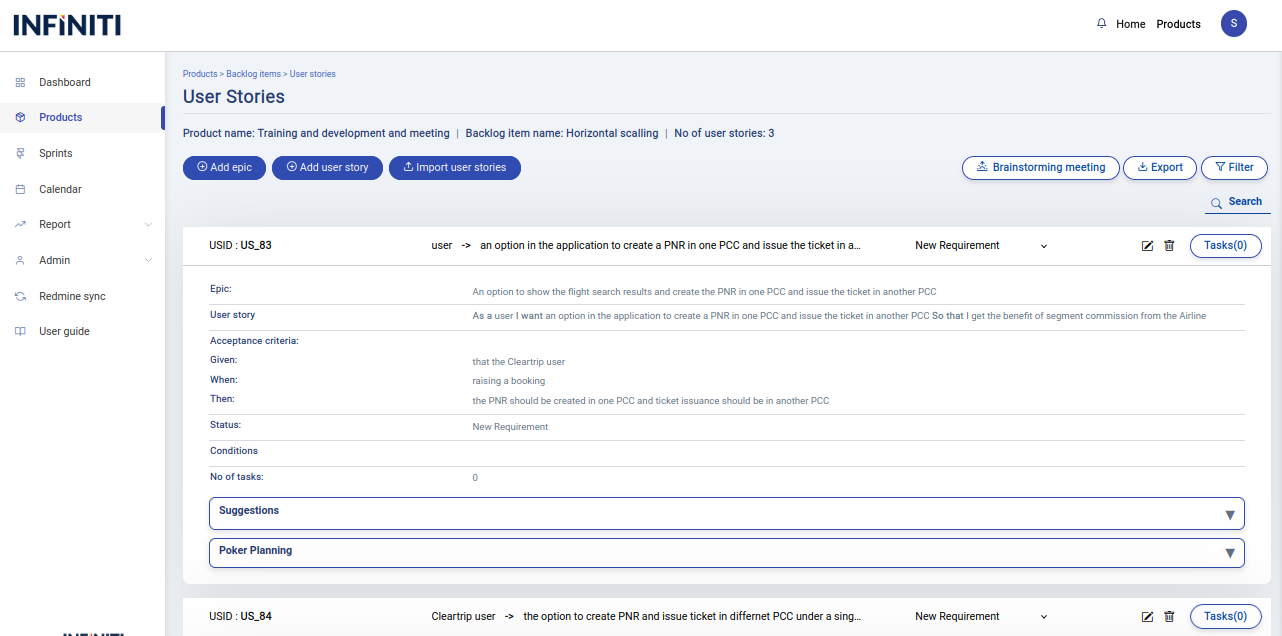
- Each user story accordion contains following details
- User story id
- epic
- User story
- AS/a an
- I want
- So that
- Acceptance criteria
- Given
- When
- Then
- Each user story accordion contains following details
Functionality :
i. Buttons and Visibility
- Add epic : Visible only to authorized users.
- Add user story : Visible only to authorized users.
- Import user stories : Visible only to authorized users.
- Brainstorming meeting : Visible only to authorized users.
- Export : Available to all users.
- Reveal Poker : Visible only to authorized users.
- Task view : Available to all users.
- Edit user story : Visible only to authorized users.
- Delete user story : Visible only to authorized users.
ii. Page Features
- Search : The search function allows users to find user story by their user story names.
- Filter : Allows users to filter user stories based on status and description.
iii. Automating Backlog status based on user story
- If all the user story is in the status of ‘completed’ then that corresponding backlog item status will be automatically change to ‘completed’.
- If all the user story is in the status of ‘new’ then that corresponding backlog item status will be automatically change to ‘user story creation’.
- If all the user story is in the status of ‘ready for brainstorming’ then that corresponding backlog item status will be automatically change to ‘brainstorming’.
- If all the user story is in the status of ‘in sprint’ then that corresponding backlog item status will be automatically change to ‘in sprint’.
- If all the user story is in the status of ‘ready for sprint’ then that corresponding backlog item status will be automatically change to ‘ready for sprint’.
- If some of the user story is in the status of ‘in sprint’ then that corresponding backlog item status will be automatically change to ‘in sprint partial’.
- If some of the user story is in the status of ‘ready for brainstorming’ then that corresponding backlog item status will be automatically change to ‘partially brainstorming’.
iv. Suggestion
- Use suggestions to provide recommendations and give the suggestions based on the user story
- For each suggestion, we can provide a reply.
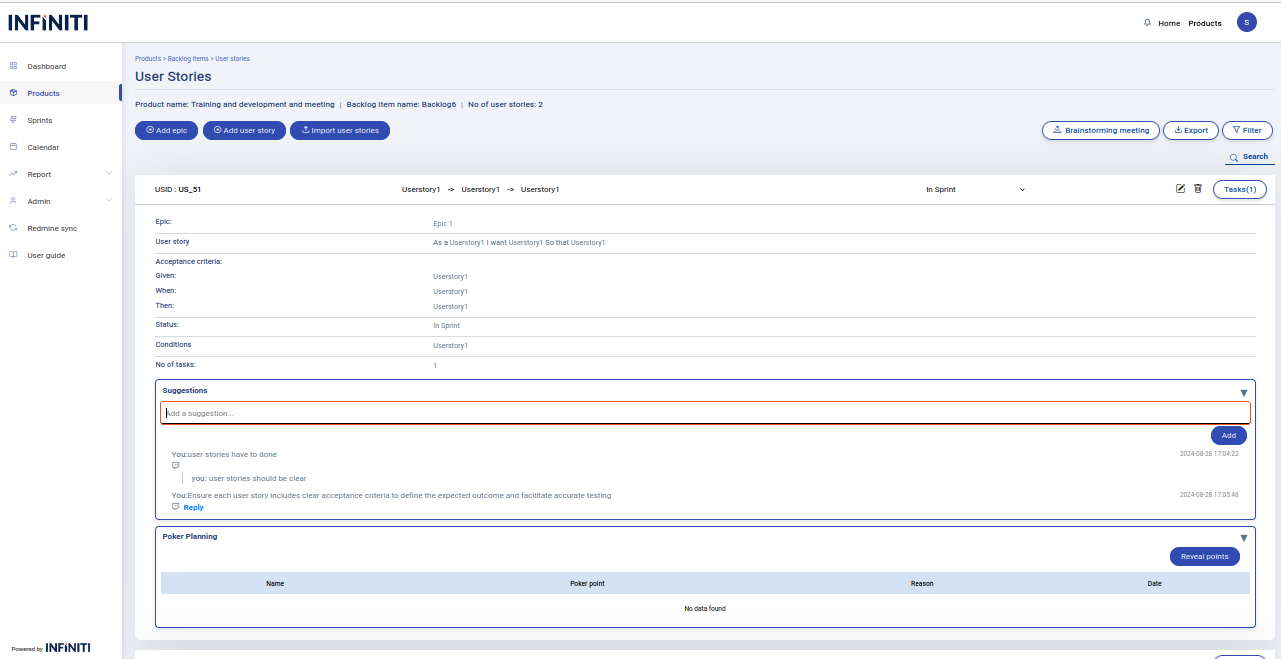
v. Poker planning
- The poker planning is used to assign the story points by developers
- Story points describe the weight or complexity of the user story
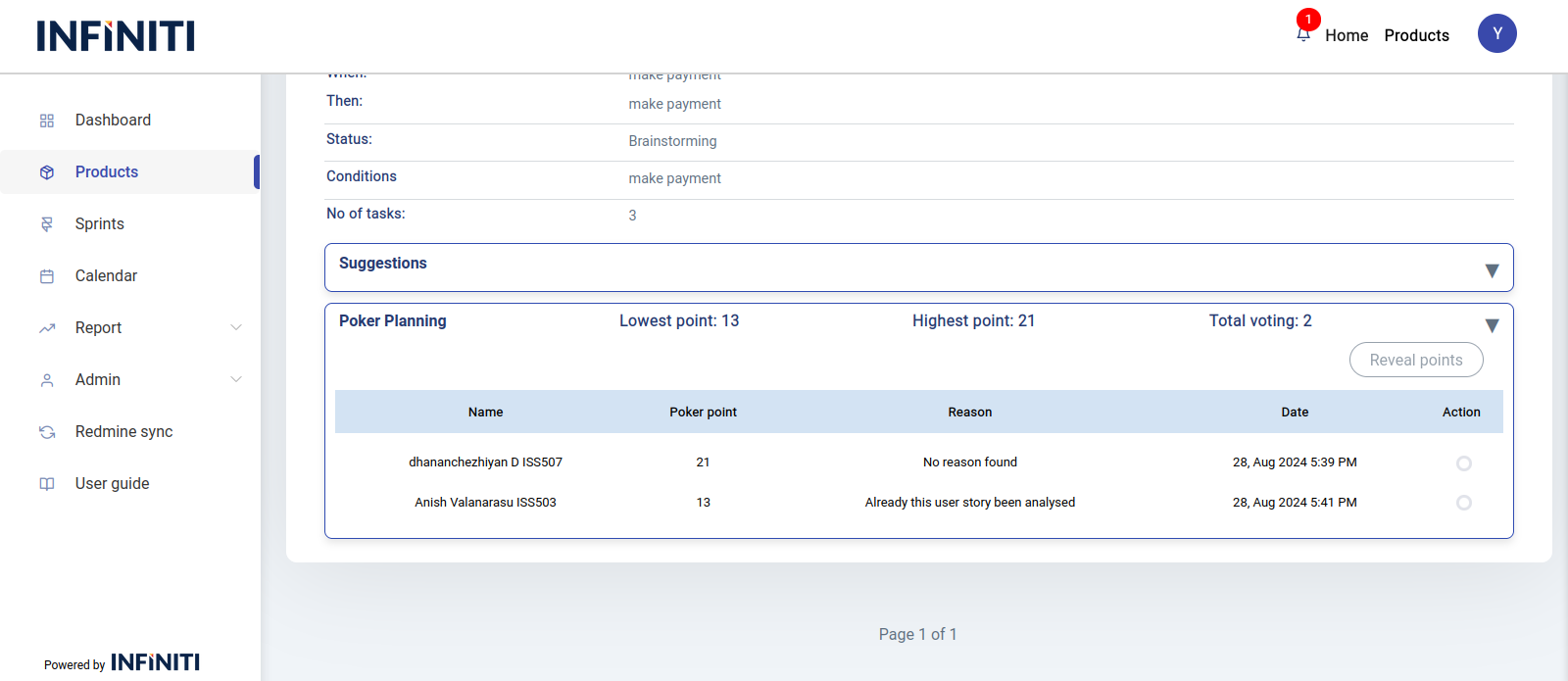
- At the end, the authorized person reveals all the story points provided by developers
- The authorized person can select any one story point from all available options
- The authorized person can add the story points by click the “poker planning” inside the each user story accordion.
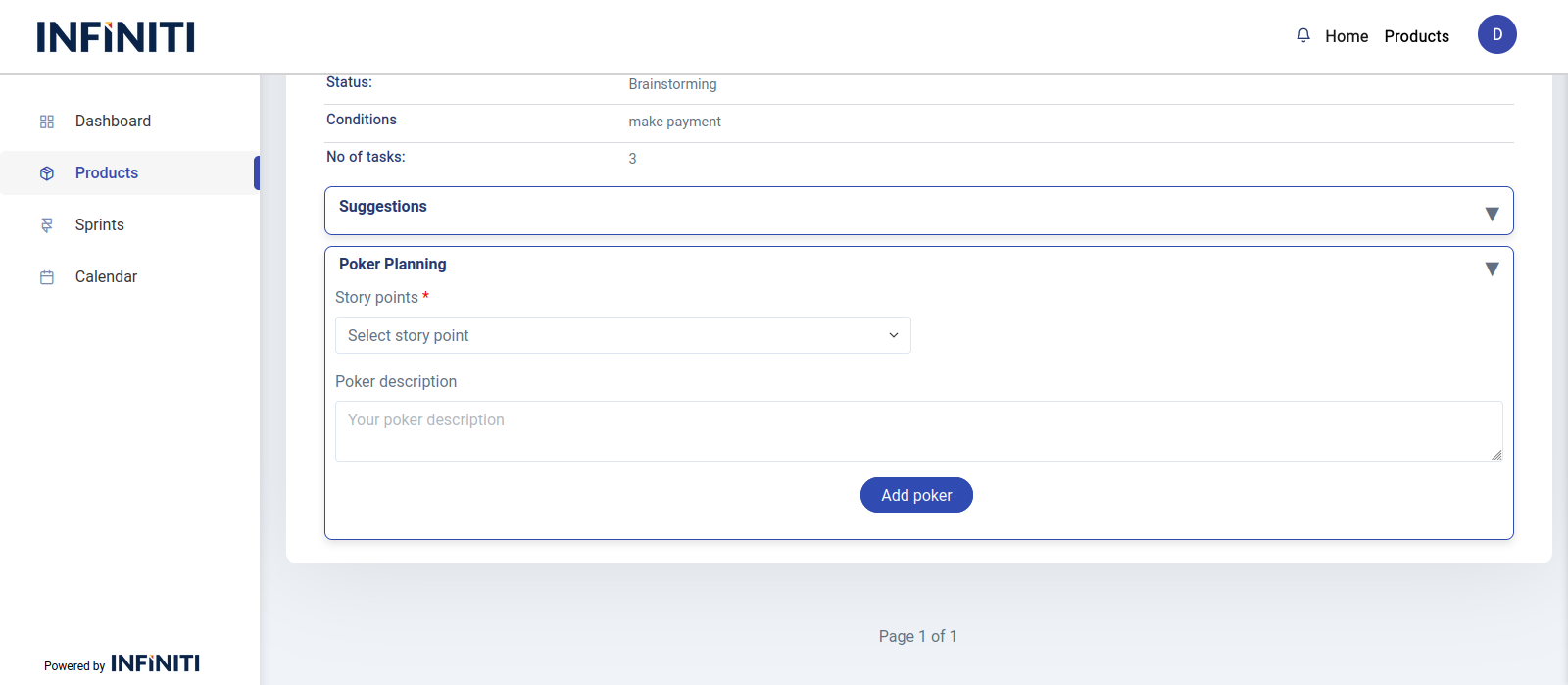
- For the authorized person, the ‘Reveal Poker’ button will be displayed, and a list of those who have entered story points will be shown
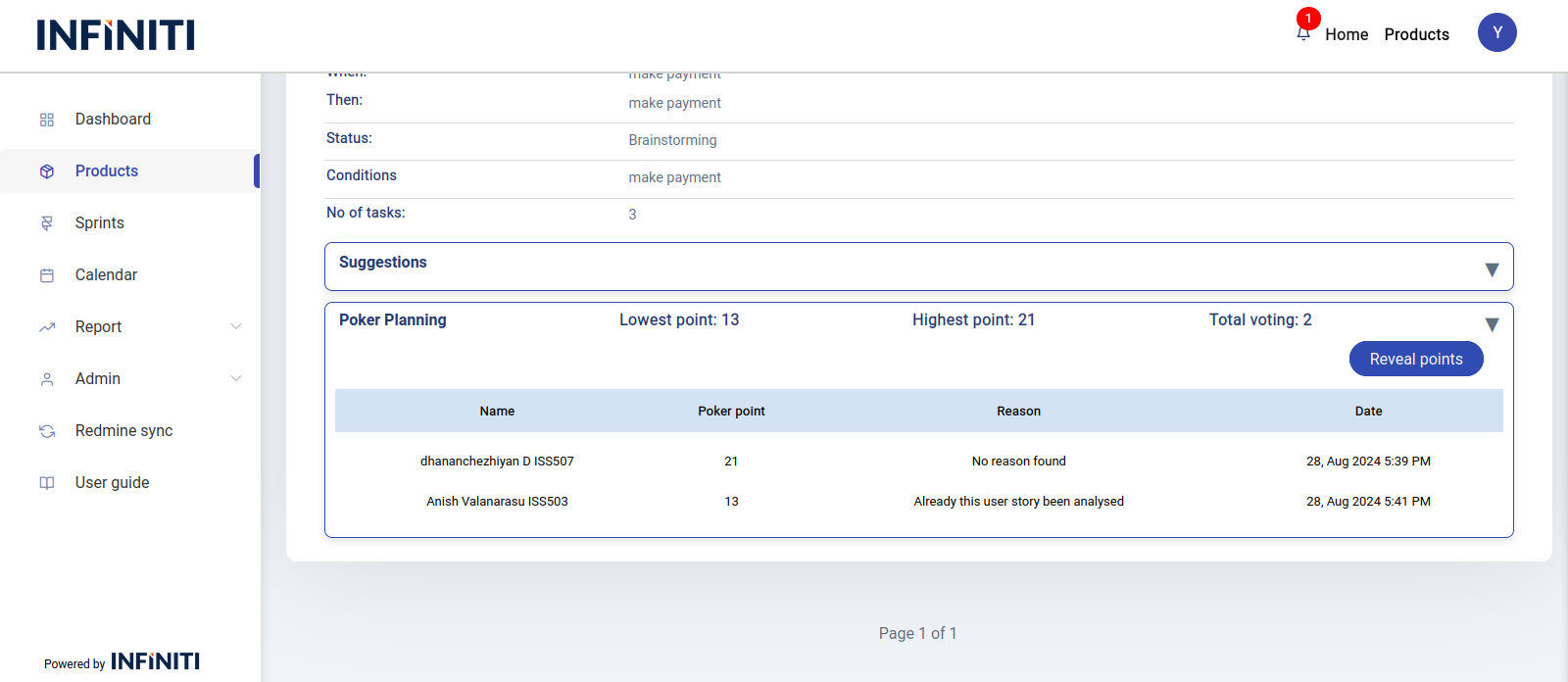
- All the individuals who add story points will have their selections listed for the authorized person, who can then reveal the final story points
- After selecting the story point based on the complexity of the user story, that point will be displayed in the user story accordion.