
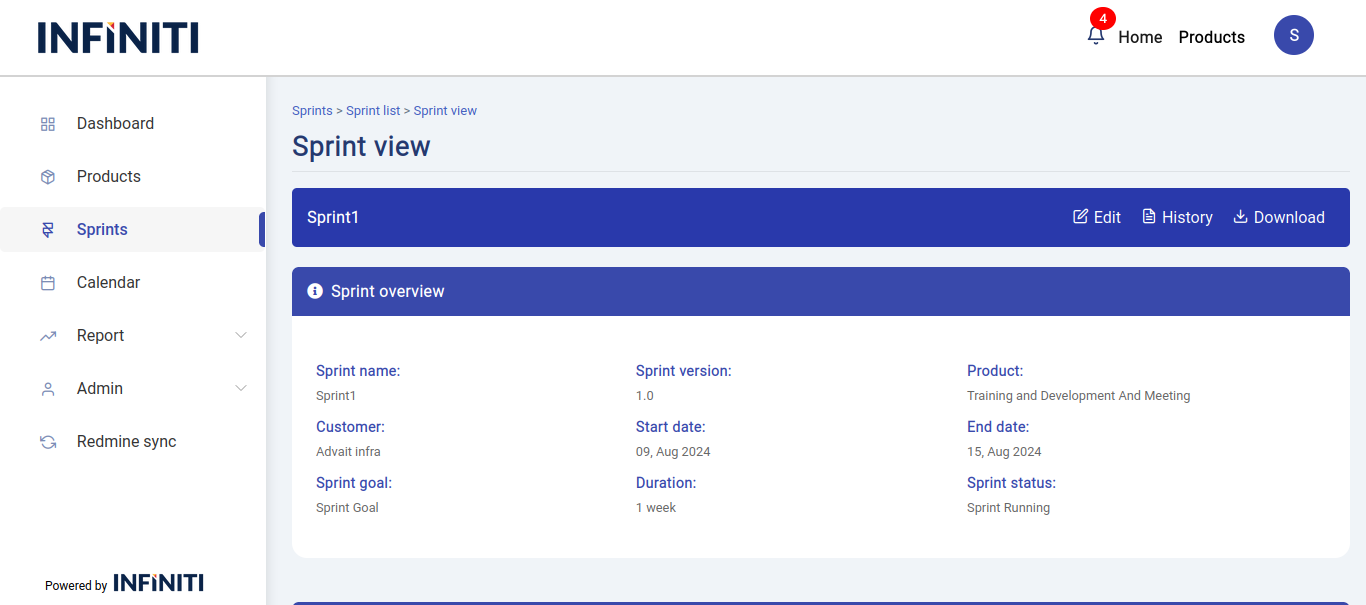
The Sprint view page is to display overall details of a particular sprints, by clicking the eye button associated to each sprint in the sprint list page the sprint view page will be opened.
Functionality:
i. Access control
- Product association: The Sprint view page is accessible only if the sprint is associated with the product linked to the user.
ii. Page layout
- Sprint name: Displayed on the left side at the top of the page.
- Buttons: Positioned on the right side at the top of the page:
- Edit button: Visible only to users authorized to edit the sprint.
- Action: Clicking this button redirects to the Sprint Edit page where users can update sprint details and status.
- History button:
- Function: Displays a history of all user actions with dates.
- Filter option: Allows filtering of history based on date.
- Download button: Available to all users.
- Function: Allows downloading of the sprint report in PDF format.
- Edit button: Visible only to users authorized to edit the sprint.
iii. Authorized user actions
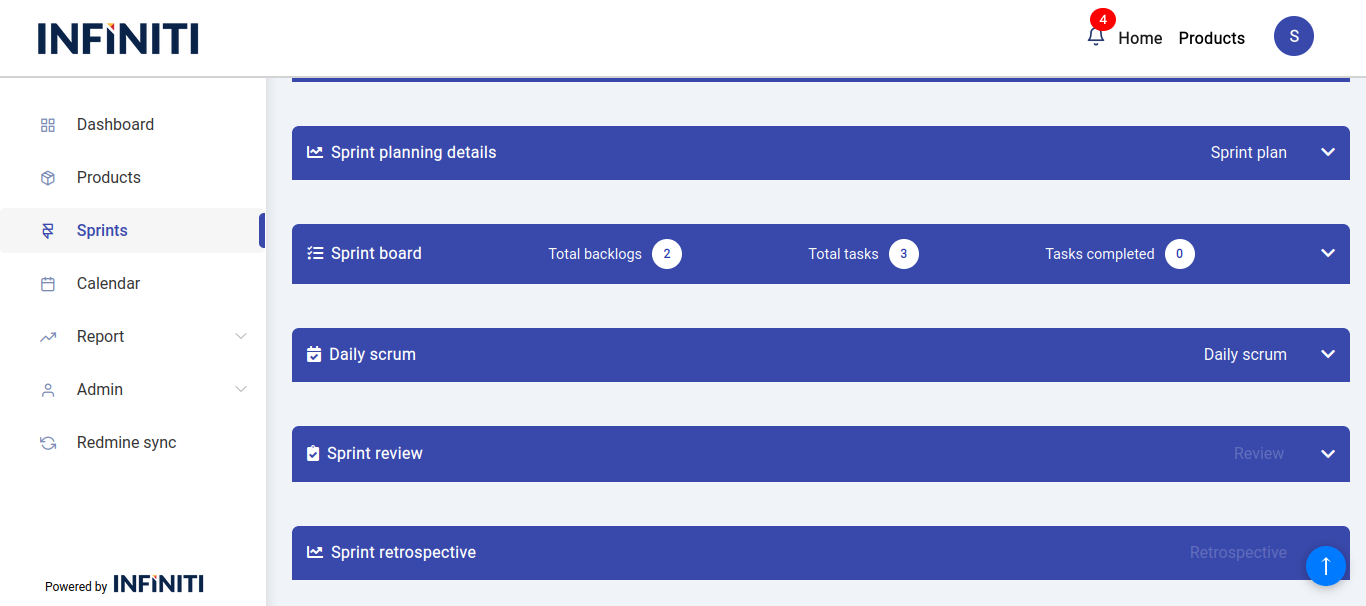
- Add sprint planning: Authorized users can add details for sprint planning.
- Add daily scrums: Authorized users can add daily scrum details.
- Add sprint reviews: Authorized users can add details for sprint reviews.
- Add sprint retrospectives: Authorized users can add details for sprint retrospectives.
iv. View-only user actions
- View data: Non-authorized users can only view the data that has been updated by authorized users.
v. Sprint overview section
- Overview access: Provides a summary of the sprint based on the details entered during the sprint creation process.
- Overview access: Provides a summary of the sprint based on the details entered during the sprint creation process.
vi. Sprint members accordion
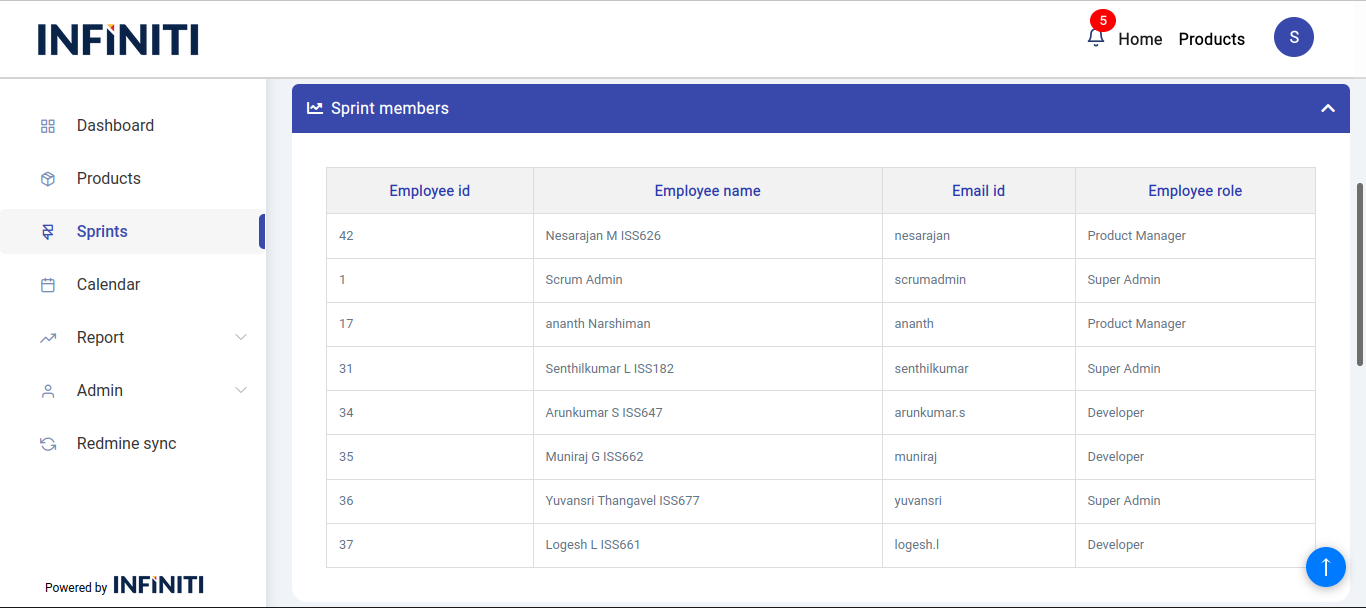
- Display: Shows the members added at the time of sprint creation.
- Information: Lists all the team members who were part of the sprint setup.
vii. Sprint planning details
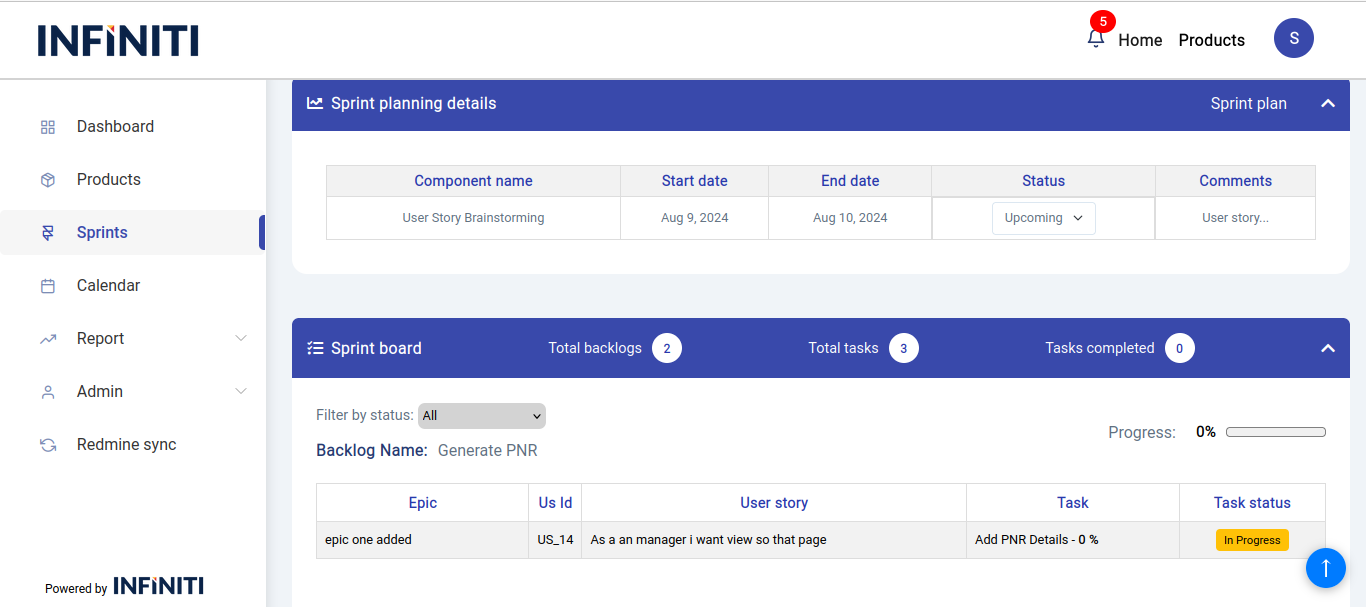
- Activity states: Each activity has three states which can be updated:
- Upcoming
- Ongoing
- Completed
- Sprint planning accordion: Displays the plans made for the current sprint.
- Add plans: The sprint plan button at the top right corner allows users to add sprint plan after the sprint is created.
- Activity states: Each activity has three states which can be updated:
viii. Sprint board
- Total backlogs: Displays the count of backlogs for the particular sprint.
- Total tasks: Displays the count of tasks for the particular sprint.
- Tasks completed: Shows the count of tasks that have been completed.
- Backlog name: Displayed above the table in the sprint board.
- Task statuses: Display the current status of the task
- Task details: Includes epic name, user story ID, and a progress bar showing the percentage of completion.
- Filter by status: Allows filtering tasks based on their status.
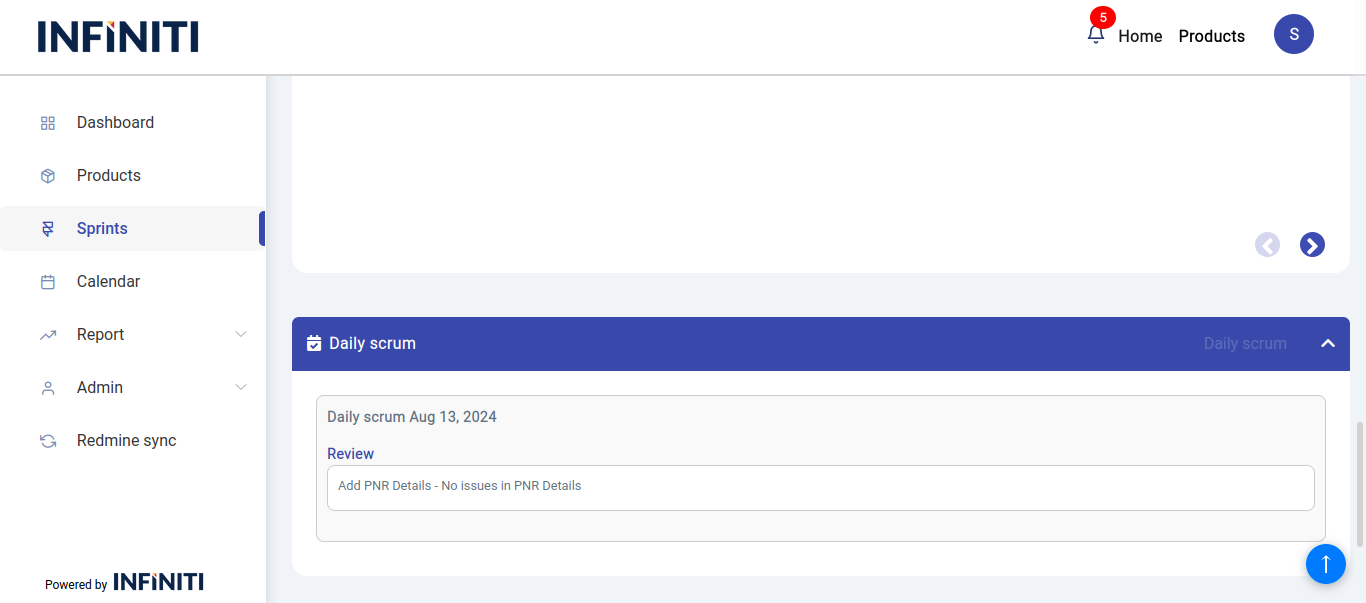
ix. Daily scrum
-
- Addition restrictions: Daily scrums can only be added when the sprint status is ‘Sprint Running’.
- Daily scrum accordion: Click to access the daily scrum details.
- Add details: Click on the daily scrum button at the top to open daily scrum modal where details discussed in the daily scrum meeting can be entered.
- Details display: Details are shown based on the date, with the most recent daily scrum at the top.
- Accordion for date: Clicking on a date opens an accordion showing the details entered in the daily scrum modal for that date.
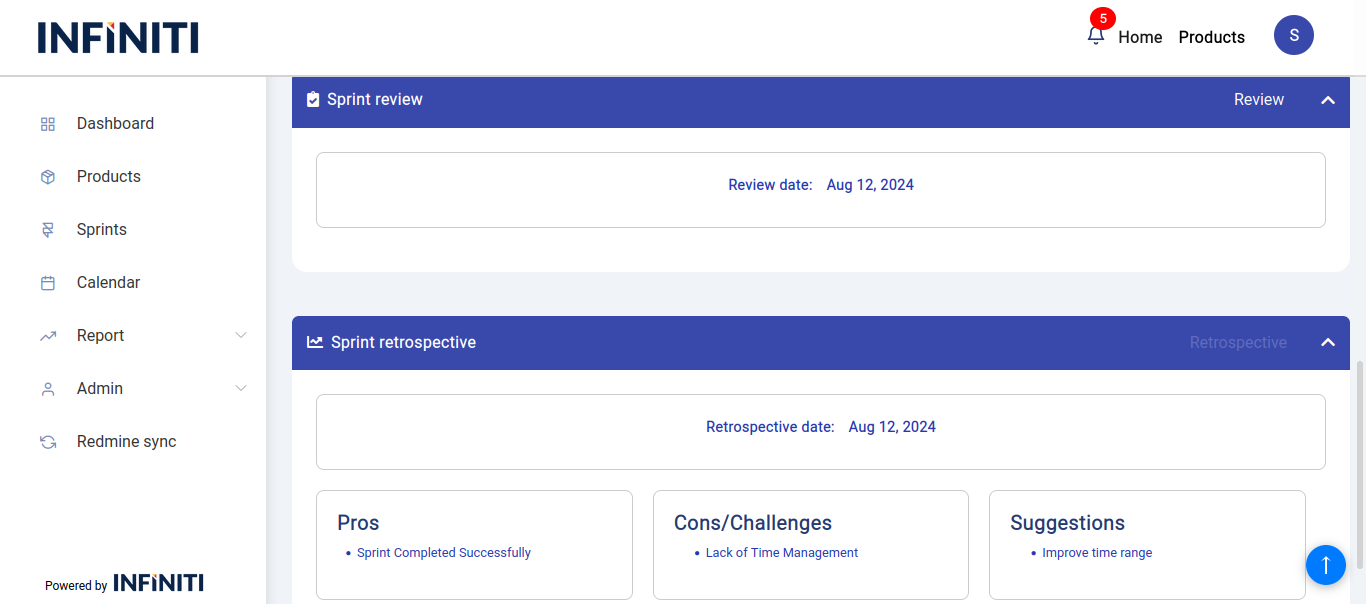
x. Sprint review
- Addition restrictions: Can only be added when the sprint status is ‘Sprint Review’.
- Sprint review accordion: Click to access sprint review details.
- Add details: Click on the sprint review button to open sprint review page for entering details discussed in the sprint review meeting, including general review, code review status, challenges faced, and sprint goal status.
- Details display: Shown based on date, with the most recent sprint review at the top.
- Accordion for date: Clicking on a date opens an accordion with details entered in the sprint review modal for that date.
xi. Sprint retrospective
- Addition restrictions: Can only be added when the sprint status is ‘Sprint Retrospective’.
- Sprint retrospective accordion: Click to access sprint retrospective details.
- Add details: Click on the sprint retrospective button to open sprint retrospective modal for entering details discussed in the sprint retrospective meeting.
- Details display: Shown based on date, with the most recent sprint retrospective at the top.
- Accordion for date: Clicking on a date opens an accordion with details entered in the sprint retrospective modal for that date.