
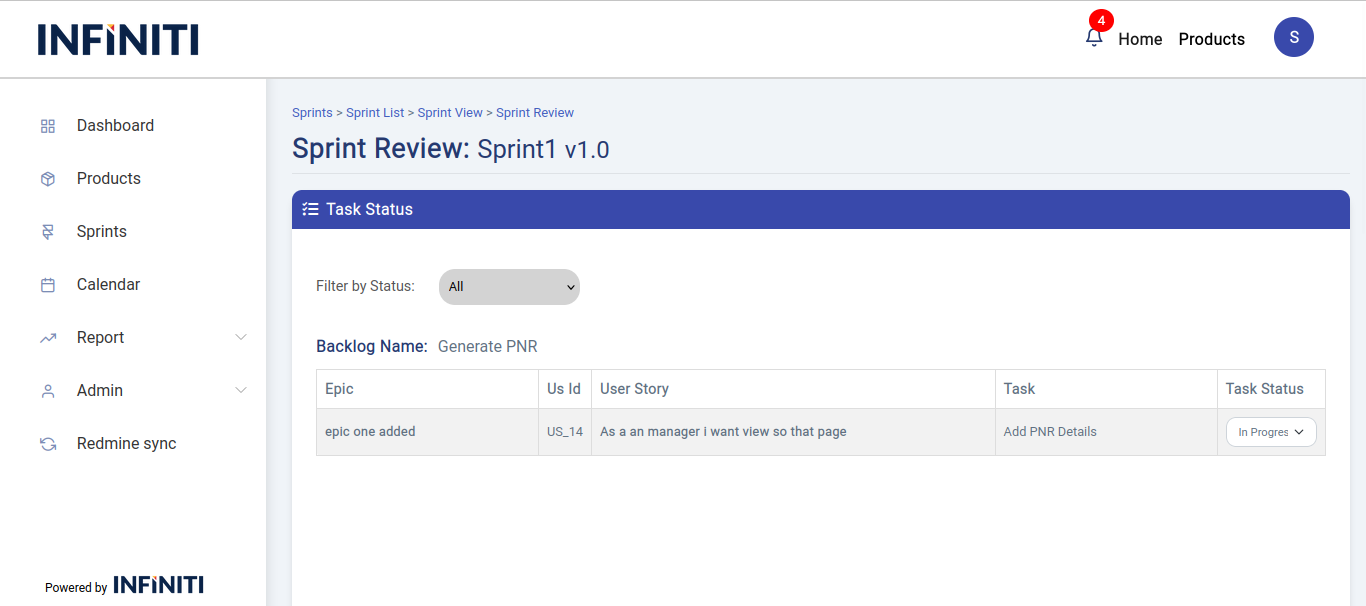
The Sprint review page is used to insert sprint reviews for the sprint, by clicking ‘Sprint Review’ button the sprint review page can be opened.
Functionality:
i. Accessing the sprint review page
- Sprint review button: Clicking the review button in sprint view page will open the sprint review page.
- One-time submission: Sprint review can be submitted only one time.
ii. Sprint review page details
- Task analysis: On the sprint review page, users can analyze tasks completed during the sprint.
- Status updates: Users can update the status of tasks to reflect their current state. The available status options are:
- Move to Prelive: The task is ready to move to the prelive environment.
- Assign for Testing: The task is assigned for testing.
- Assign for UAT: The task is assigned for User Acceptance Testing (UAT).
- Move to Live: The task is ready to go live.
- On Hold: The task is temporarily on hold.
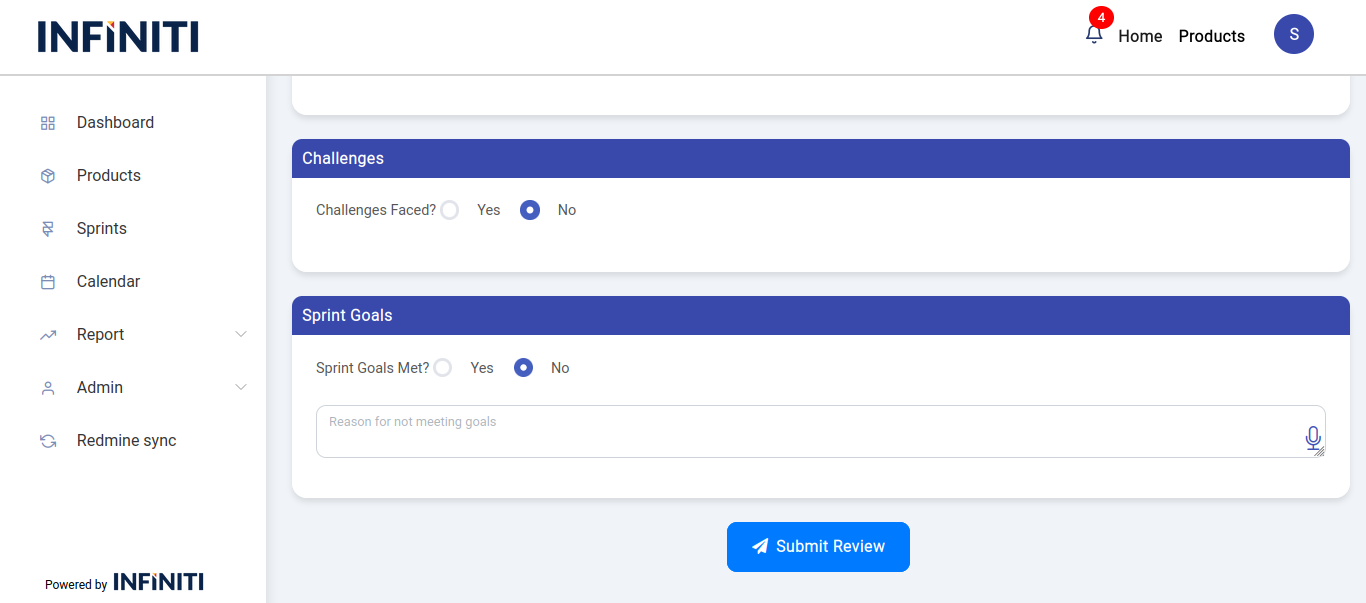
iii. Required entries
-
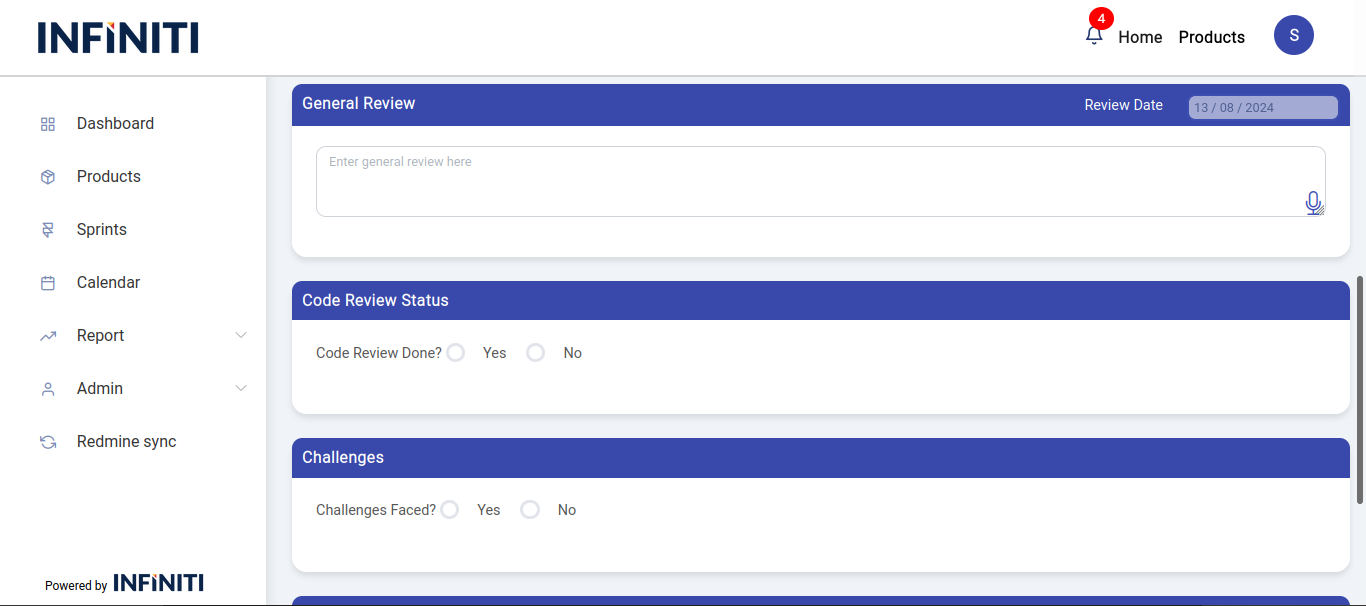
- General review comments: Enter general discussion points and observations from the sprint review meeting.
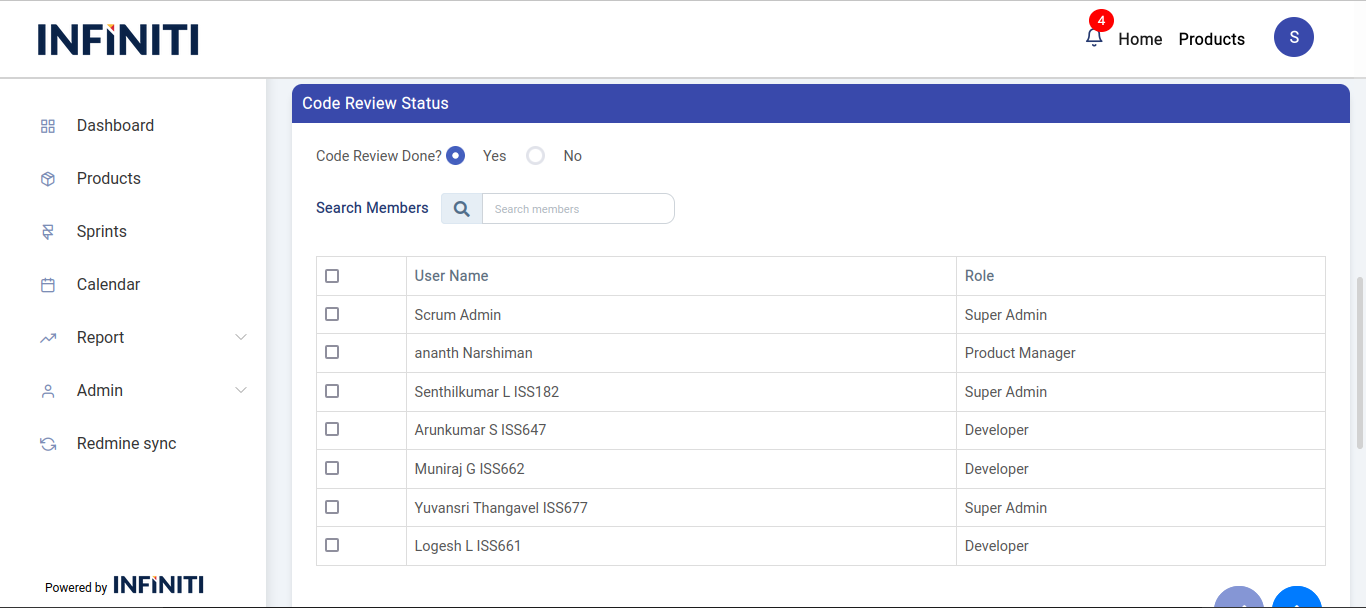
- Code review status:
- Completed: Enter the names of the members who performed the code review.
- Not completed: Provide a reason why the code review was not done.
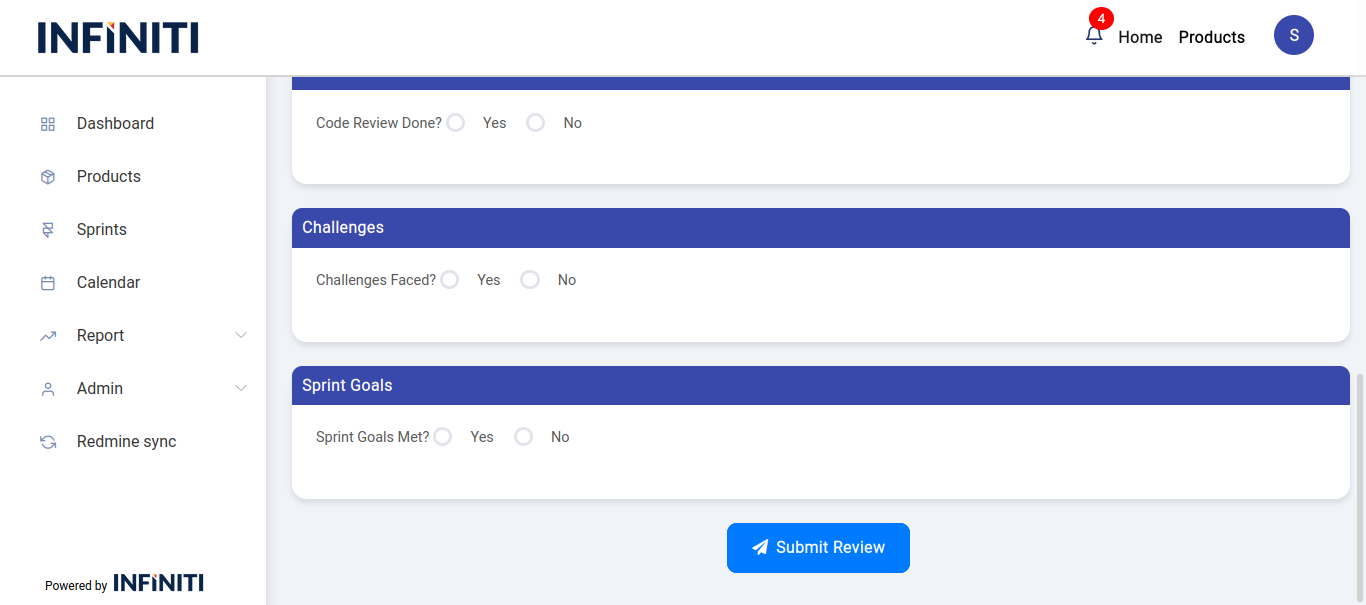
- Challenges faced:
- Challenges present: Describe the challenges faced during the sprint.
- No challenges: No explanation is required if no challenges were encountered.
- Sprint goal status:
- Goal met: No reason required if the sprint goal was achieved.
- Goal not met: Provide a reason for not meeting the sprint goal.
iv. Post-submission actions #
-
- Viewing sprint review
- Sprint history and view: Once the sprint review is successfully submitted, it will be available in the sprint history and sprint view page.
- Sprint history and view: Once the sprint review is successfully submitted, it will be available in the sprint history and sprint view page.
- Notification
- Email notification: An email will be sent to all sprint members to inform them of the completed sprint review and any relevant updates.
- Viewing sprint review