
Commit Status : Commit View #
i. Overview #
The Commit Status page helps track and manage commits across different branches, ensuring all changes are correctly propagated. Key actions include viewing commit details, checking merge status, and performing cherry-pick or merge operations.
ii. Key Features
- Uses Git and Jenkins APIs for tracking commits across environments.
- Displays the status of commits across branches (e.g., merged, not merged).Highlights missing or unmerged commits for easy identification.
- View options like “Not Merged” to access detailed commit information.
- A button for cherry-picking or merging unmerged commits, ensuring changes propagate sequentially.
iii. How to Use #
- Accessing the Commit Status Page
1. Navigate to the Release-Management dashboard and select the File Tracking section.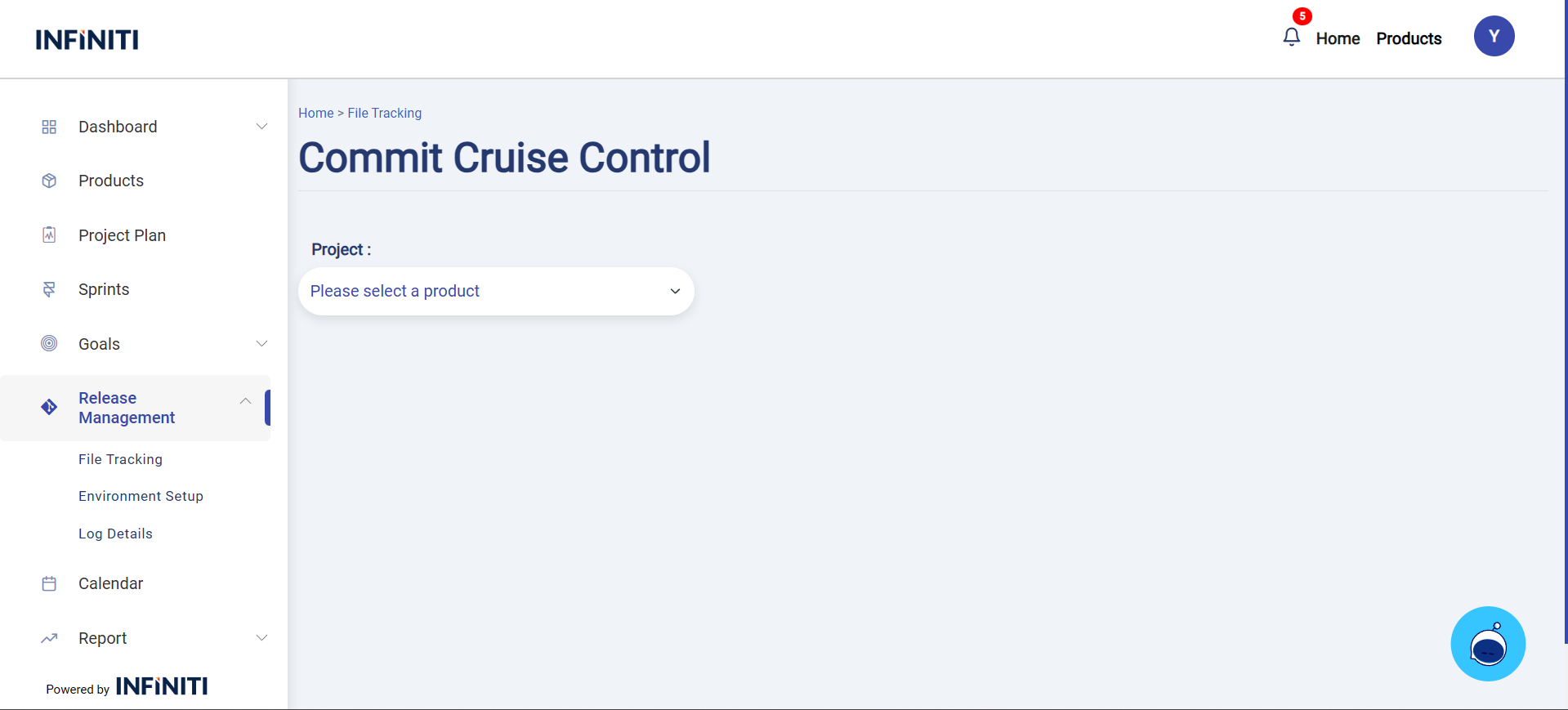
- Viewing Commit Details
1. Select a Product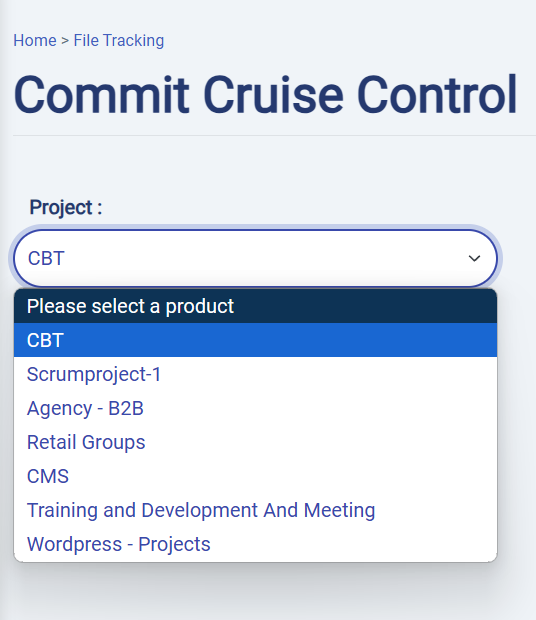
2. Select a Sprint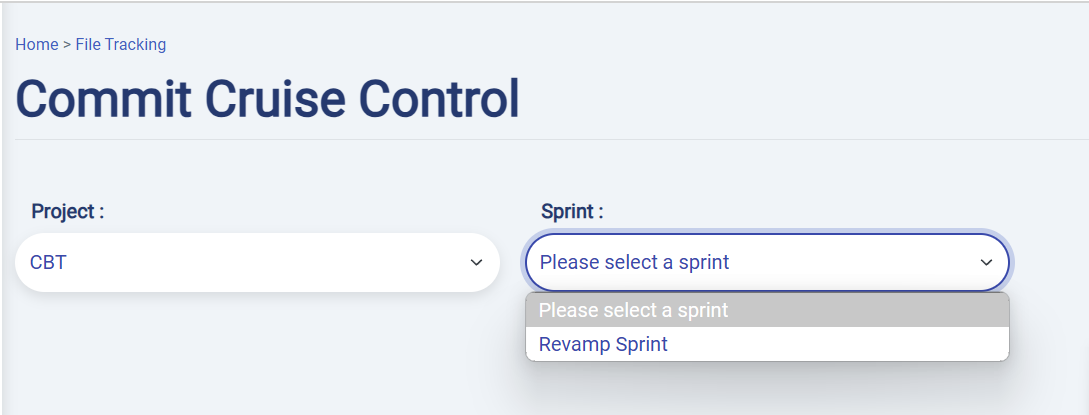
3. Select a Backlog to hit the server file.
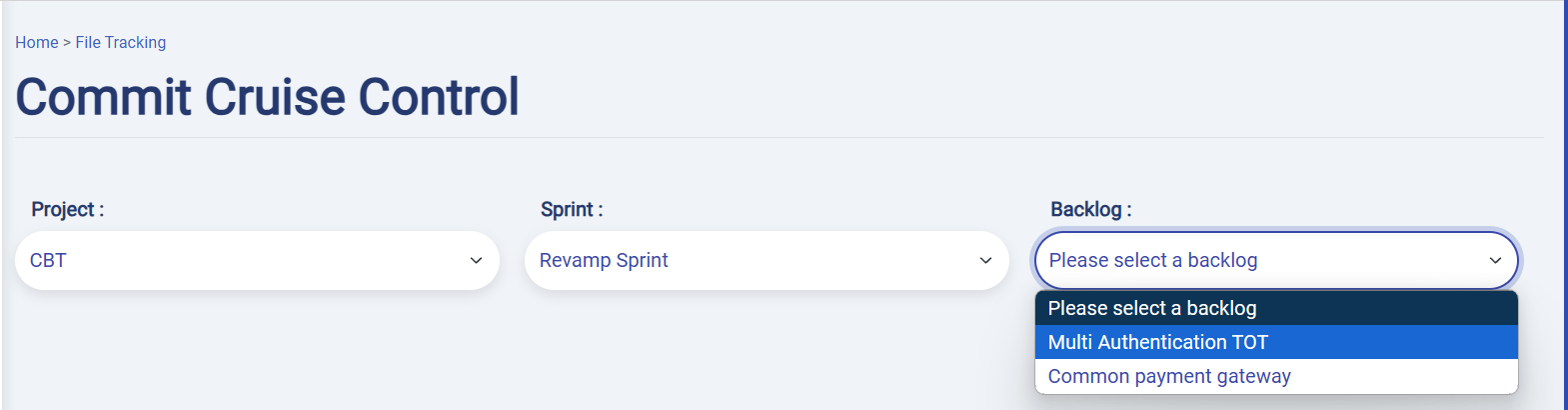 #
#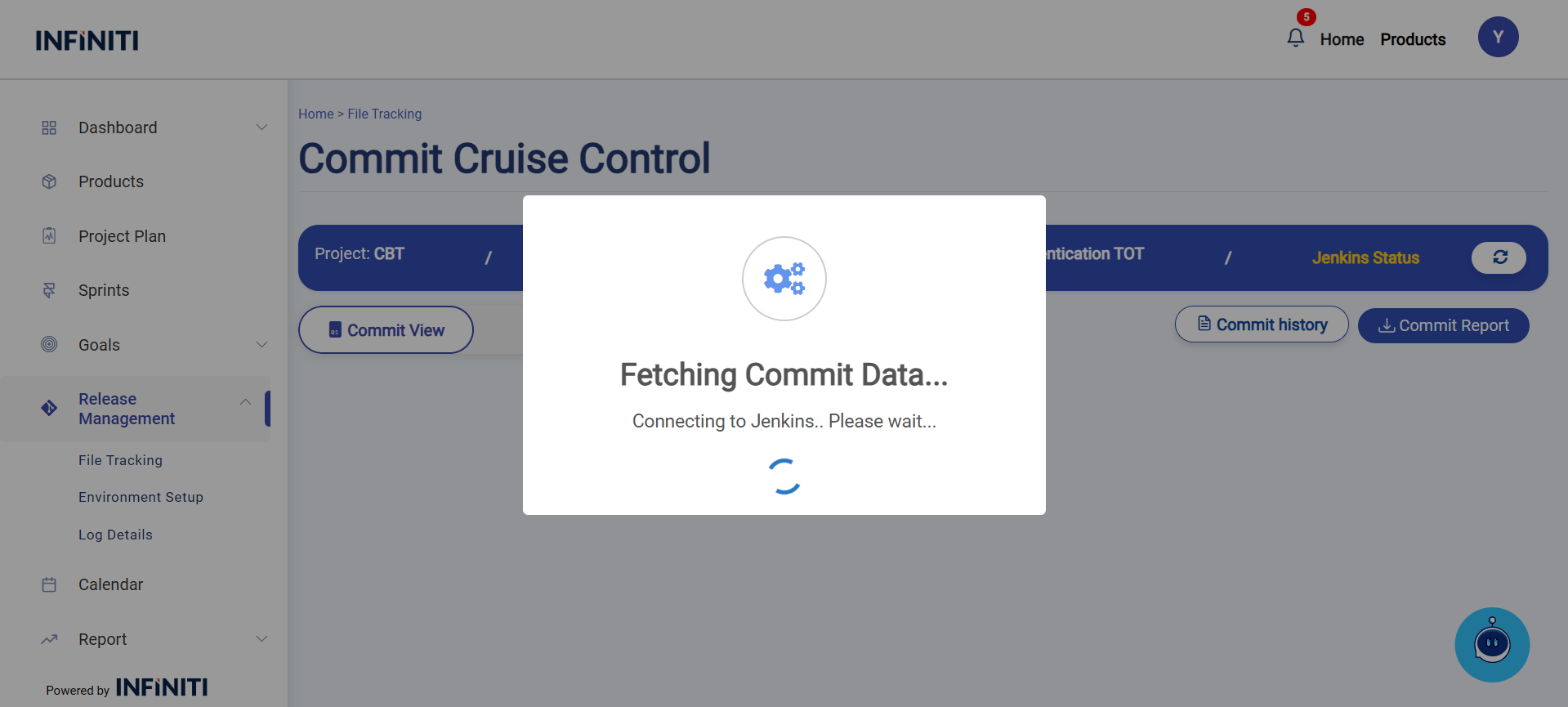 #
#4. After loading, Hover over the listed commits to reveal interactive options.
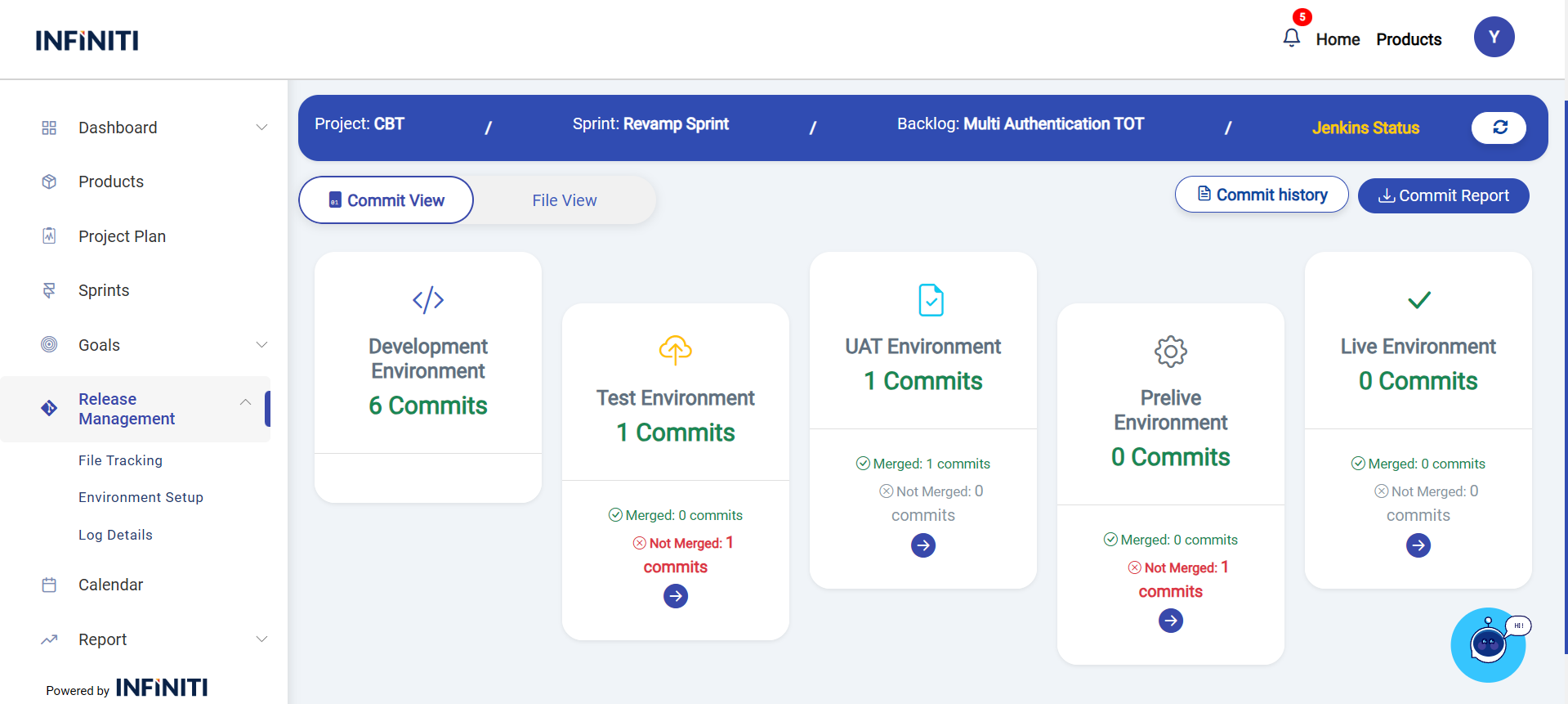
5. Click Not Merged to open a modal with commit-specific details.
In there, Check commit details for discrepancies using the provided commit modal.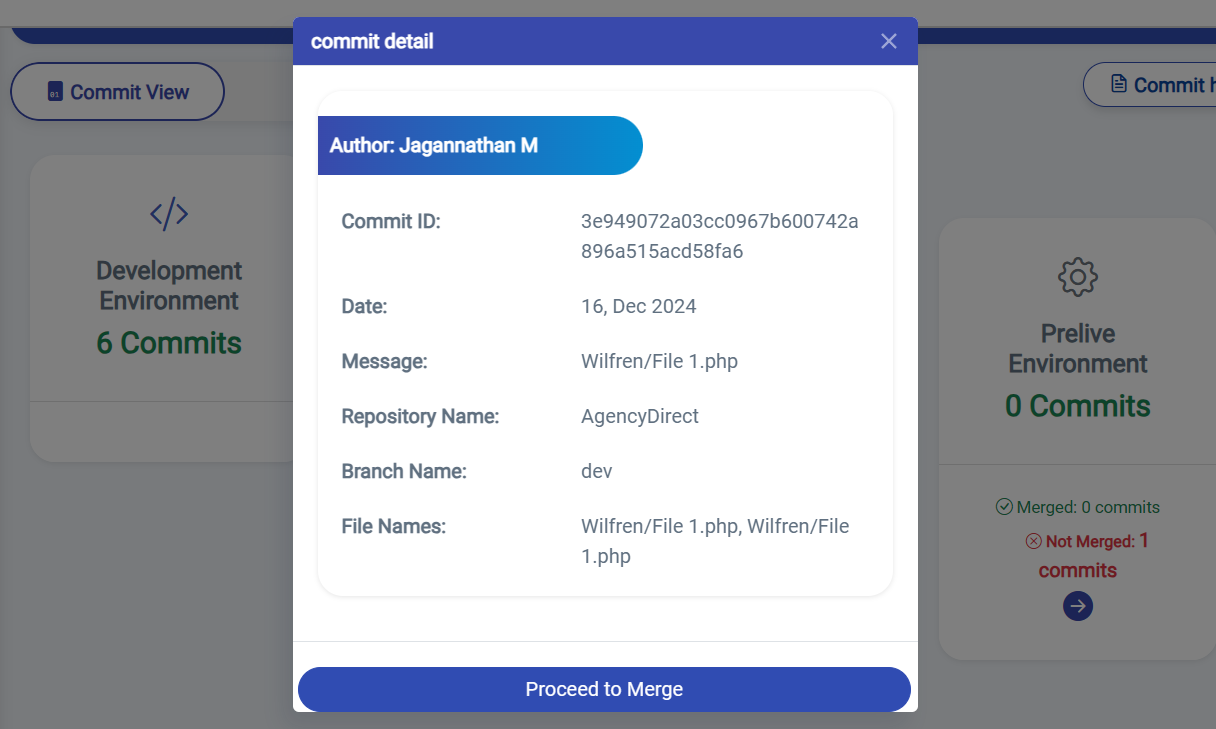 #
# - Merging Commits
Click Proceed to Merge to navigate to the cherry-pick or merge screen.
1. Follow sequential steps to integrate unmerged commits into the target branches.
iv. Commit Tracking Workflow #
- Fetch Branch Data
1. Ensure Git branches are valid and Memcached is running (port 11211).
2. Data is fetched via server APIs, ensuring a stable network connection.
- Compare Commits
1. The system usesgit logandgit diffto validate patch content, ensuring changes are consistent across branches.
2. Only specific file commits are processed for optimized performance.
- View Commit Details
1. Click Not Merged to open a modal displaying:
Commit ID
Author
Date
Files included
- Proceed to Merge
Use the Proceed to Merge button to navigate to the next page(Commit Details) for: Cherry-picking commits / Merging changes sequentially.

Commit Report :
By clicking the Commit Report, you can view detailed information about the commits across the branches with commit message their author, and the date.