
Commit Details Page #
The Commit Details Page is the starting point for exploring the specifics of a commit. This page provides a clear and concise overview of the commit, making it easy for users to understand and interact with the changes.
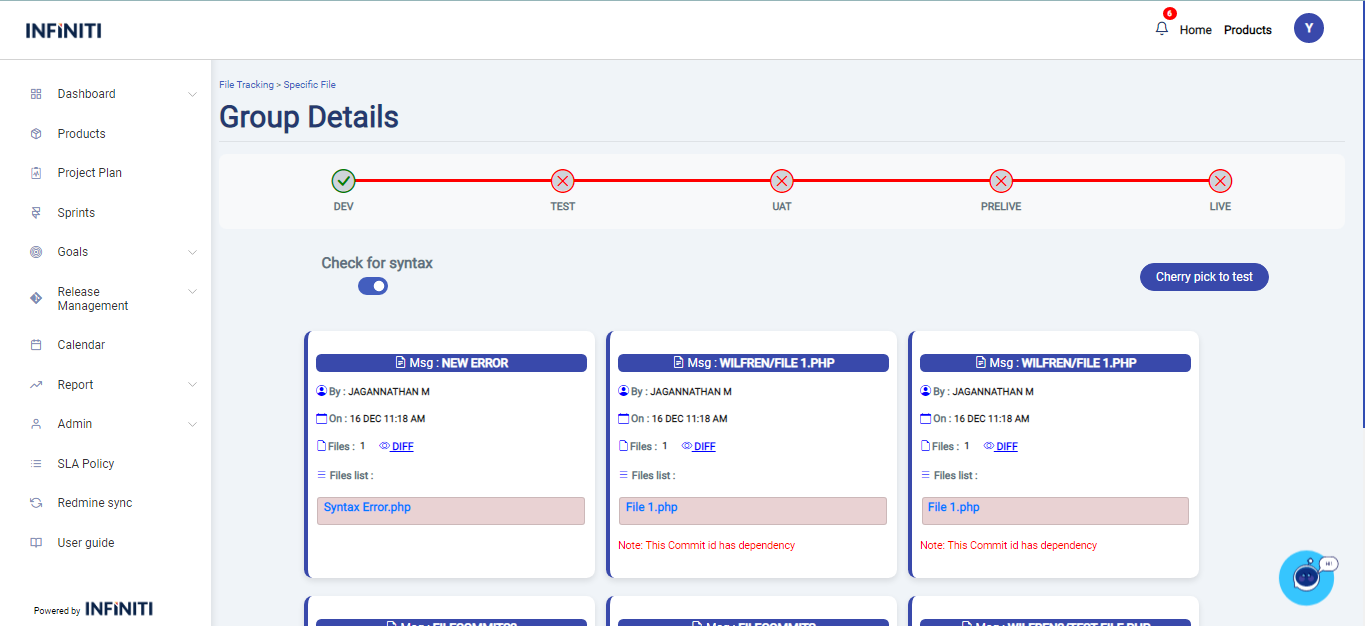
Here’s what you can find:
The Commit ID Tracker visually shows the current environment of each commit ID (e.g., DEV, TEST, UAT, PRELIVE, LIVE) with tick marks updating dynamically.
Commit Card Overview:
A commit message summarizing the changes.
The author of the commit for accountability and collaboration.
The date the changes were committed for tracking purposes
i. File Insights
The number of files impacted by the commit, offering a quick scope of the change.
A detailed list of files included in the commit, each displayed with its file name.
ii. Dependency Indicator
A red-highlighted note alerts users if the commit has dependencies, ensuring critical awareness before proceeding.
This page serves as a gateway to understanding and managing your commits efficiently, offering both high-level insights and granular details in a user-friendly layout.
Cherry Pick Process #
Selection Process:
Selection is done in three different ways
1. Only card selection
2. Only file selection
3. File and Card selection
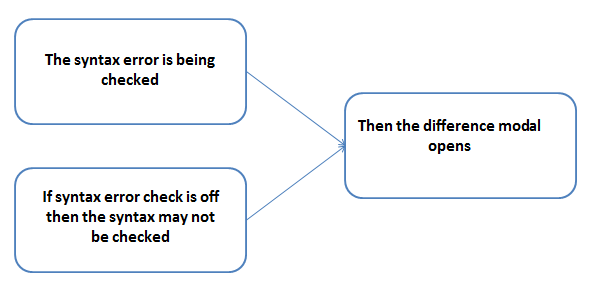
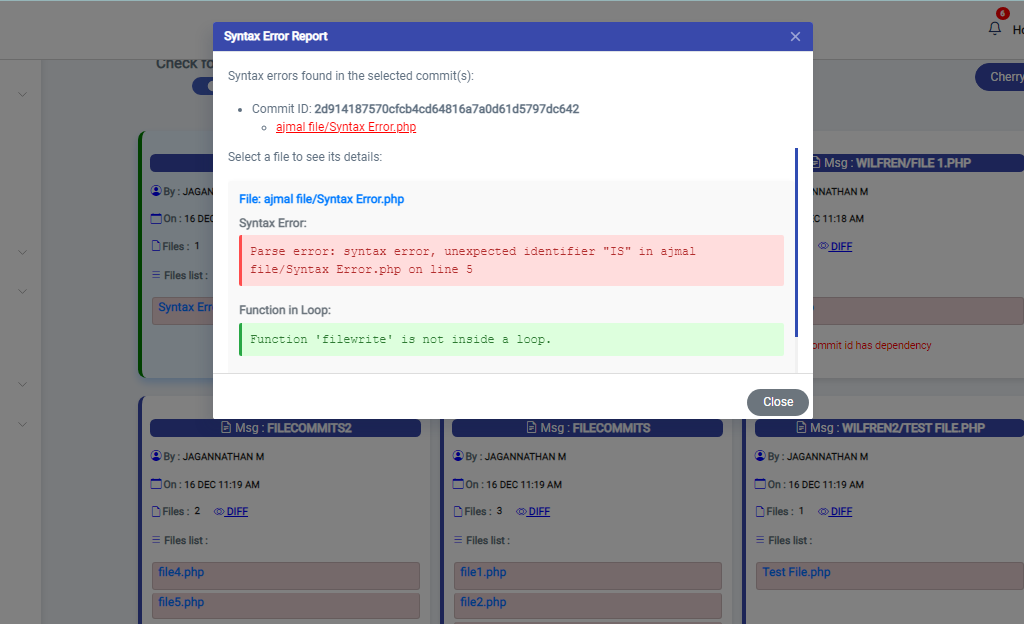
2. If any error exists then ‘Error Modal Opens’
3. If no error then the cherry pick modal opens for difference
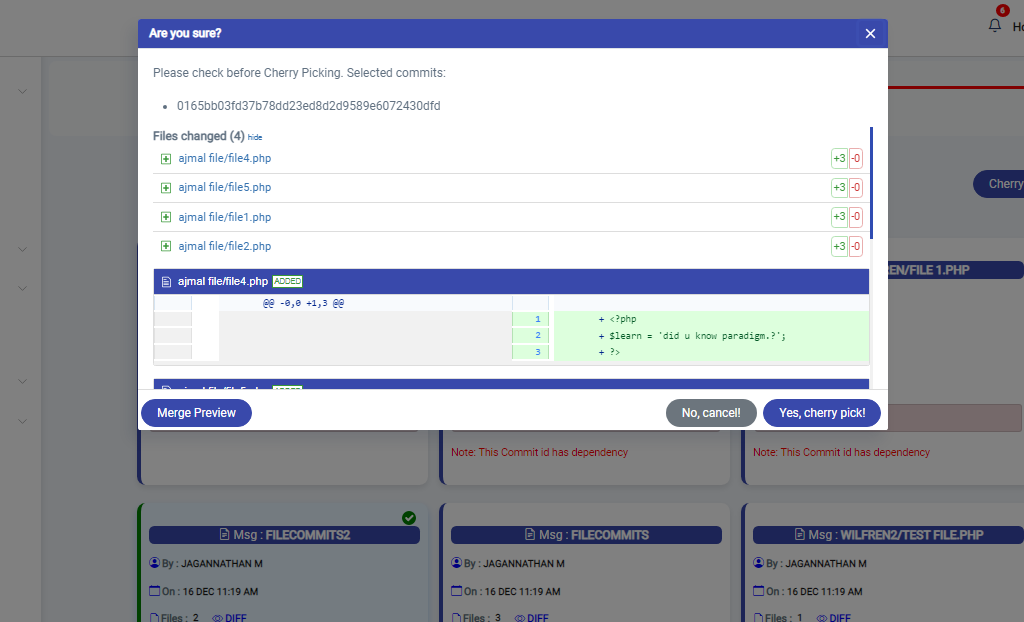
It shows the file names of the selected files if the whole commit id is selected then commit id may show and the difference that happened in the file may be displayed in the comparison format.
4. On clicking the merge preview button after merge modal opens
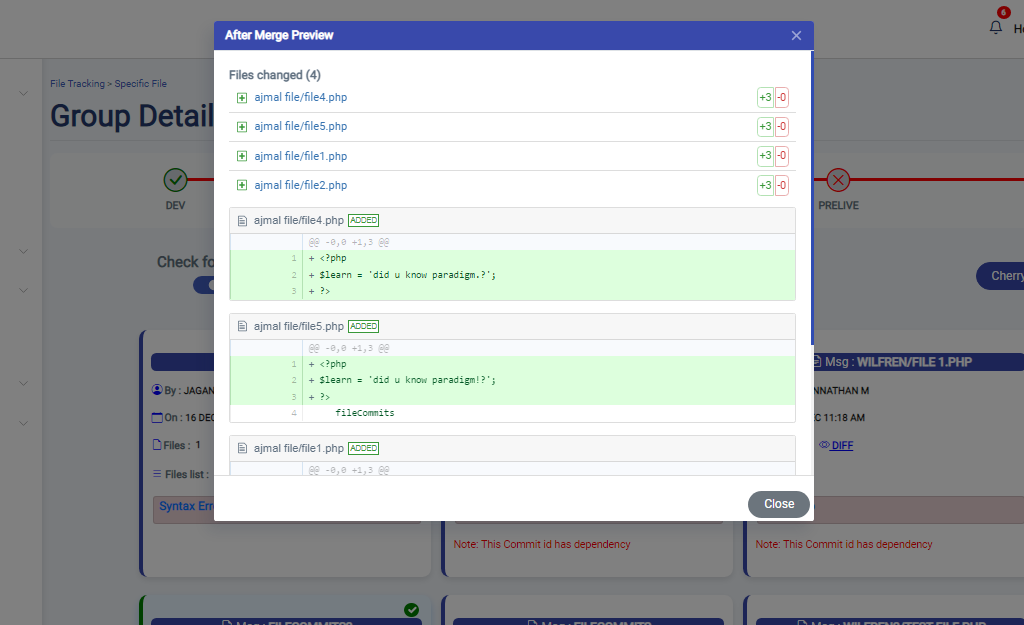
This content shows the merged content after cherry pick in the target branch.
If the selected commit ids are already cherry picked and only not moved to server then the input message may not be asked.
If any of the selected commit id has not been cherry picked then commit message may be asked for all the selected commit ids.
5. Commit message input
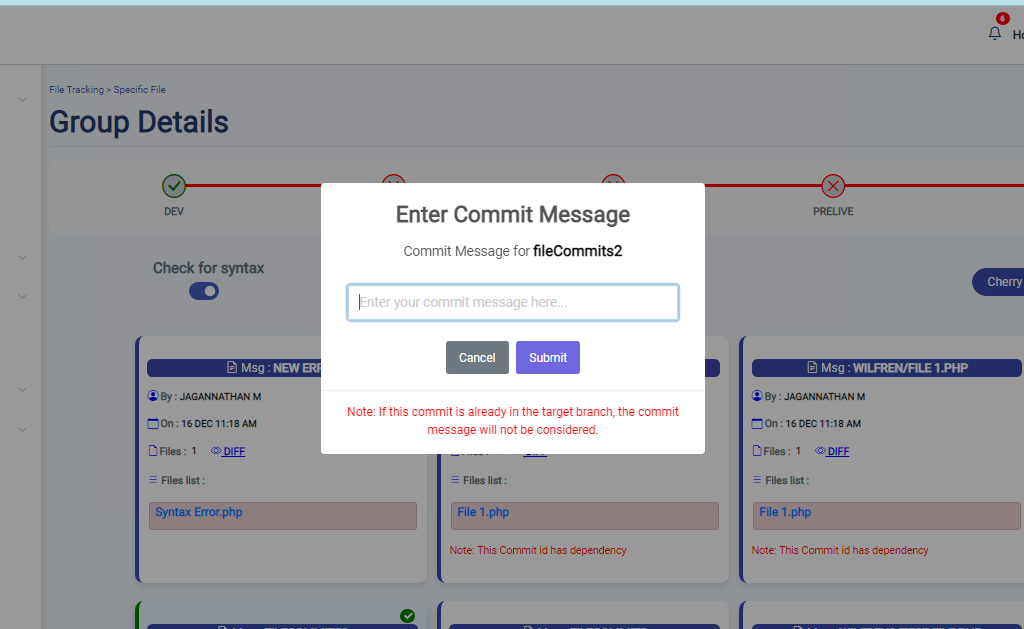
Enter the message that needed to be displayed o commit.
And a Note is given that if the commit is already cherry picked then the new message that is entered may not be considered for cherry picking.
6. Success Message
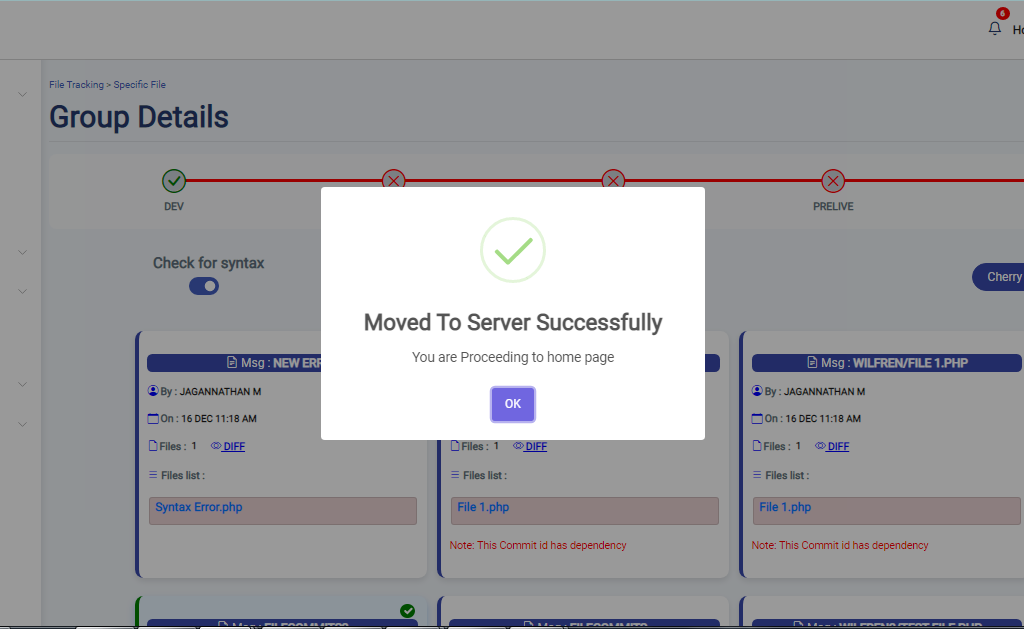
Success message is displayed when the selected commit ids are moved to the server else the corresponding error message is displayed.