
- By clicking the add backlog button the add backlog form will be displayed.
- The below popup is add backlog item form to add the backlog item.
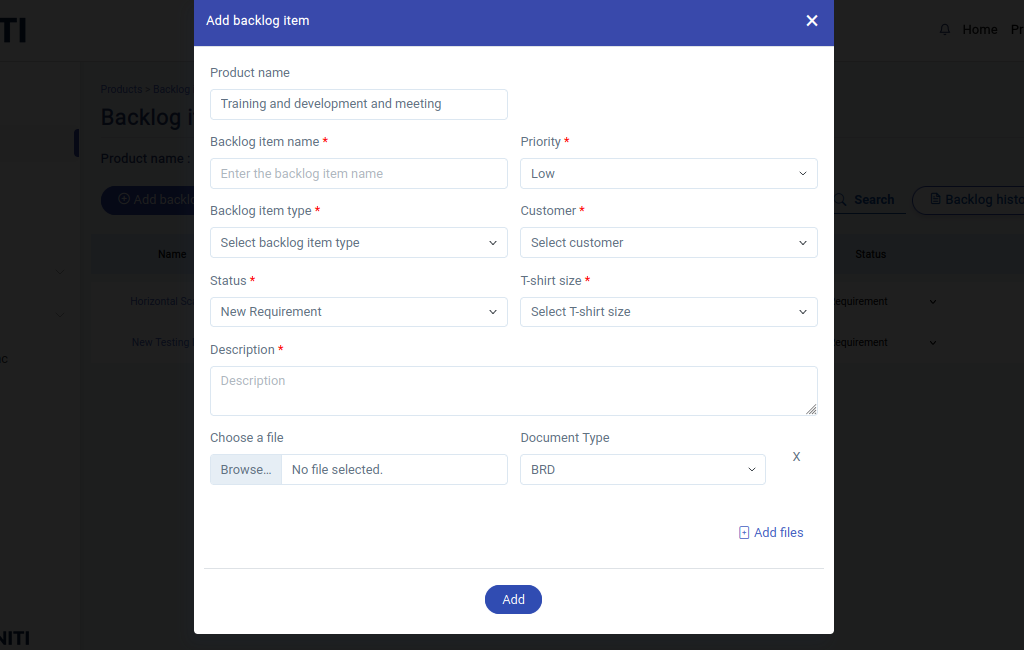
- Adding a backlog item will store it in the scrum_backlog_item table in the database
- The product name in the add backlog form is a read only value which is auto populated from the database.
- The values for the drop downs backlog item type, customer,status , t-shirt size are generated from the data in the database.
- By clicking the add files one can able to add BRD documents , Test case document , Technical document for a particular backlog item.
Functionality :
i. Button Activation
- Add backlog button: Only authorized users can access “Add backlog” button.
ii. Mandatory Fields
- Backlog item name
- Backlog item type
- Status
- Priority
- Customer
- T- shirt size
- Description
iii. Field Specifications
- Backlog item name – User-defined field for entering the name of the backlog item.
- Backlog item type – Drop-down list to select the backlog item type.
- status – Drop-down list to select the status of the backlog item.
- Priority – Drop-down list to select the priority of the backlog item.
- Customer – Drop-down list to select the customer of the backlog item.
- T- shirt size – Drop-down list to select the t- shirt size of the backlog item.
- Description – Text area for entering the description.
- Add files – Drop-down list to select the file type and choose the file.