
Commit Status : File View
i. Overview #
The File View feature in the Commit Status page allows users to compare files between two Git branches in a dual-pane structure. It provides detailed insights into file differences, including added, deleted, modified, or unchanged files, and supports file synchronization across branches.
ii. Features #
- Dual-Pane File Tree
- File Content Comparison
- Editing and Synchronization
- File Copying
- Scroll Synchronization
- Server-Side File Management
iii. How to Use Guide #
- Loading the File View
- Navigate to the Commit Status page as in previous commit Status page guide.
- Click the File-View button.
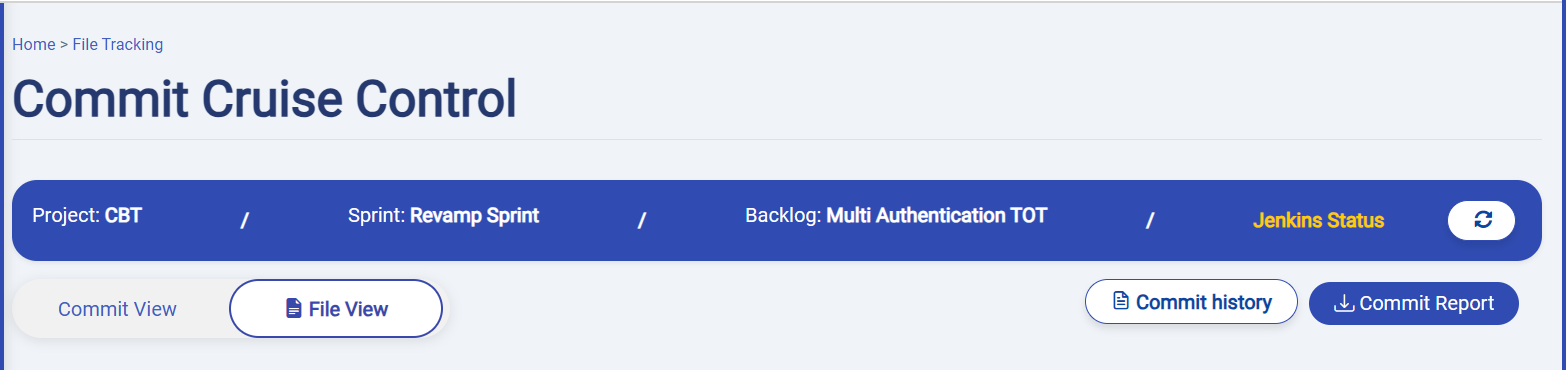
- It fetch files as per the backlogs in server.
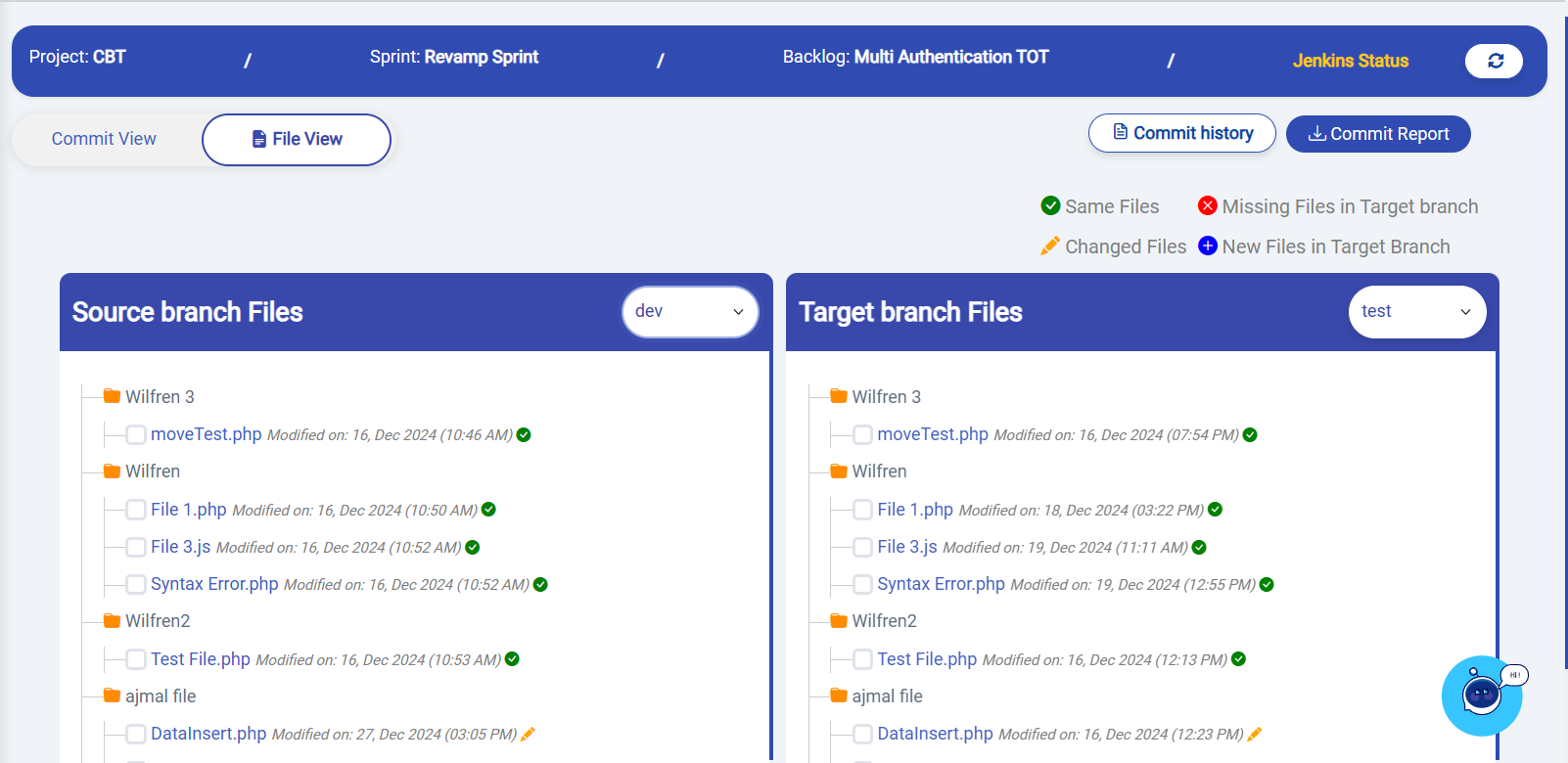
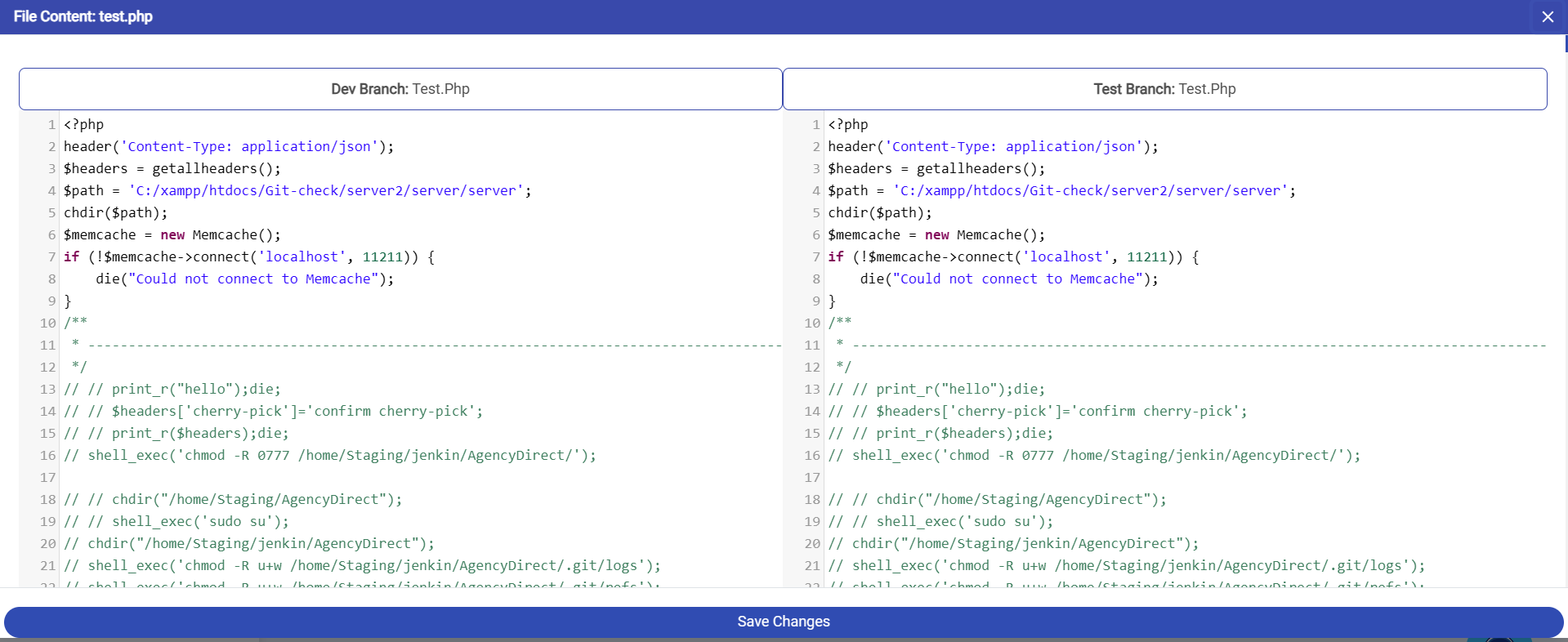
- Viewing File Content
- Click on a file name in either pane.
- A modal appears displaying file content side-by-side.
- Editing File Content
- Modify the content in the target branch pane.
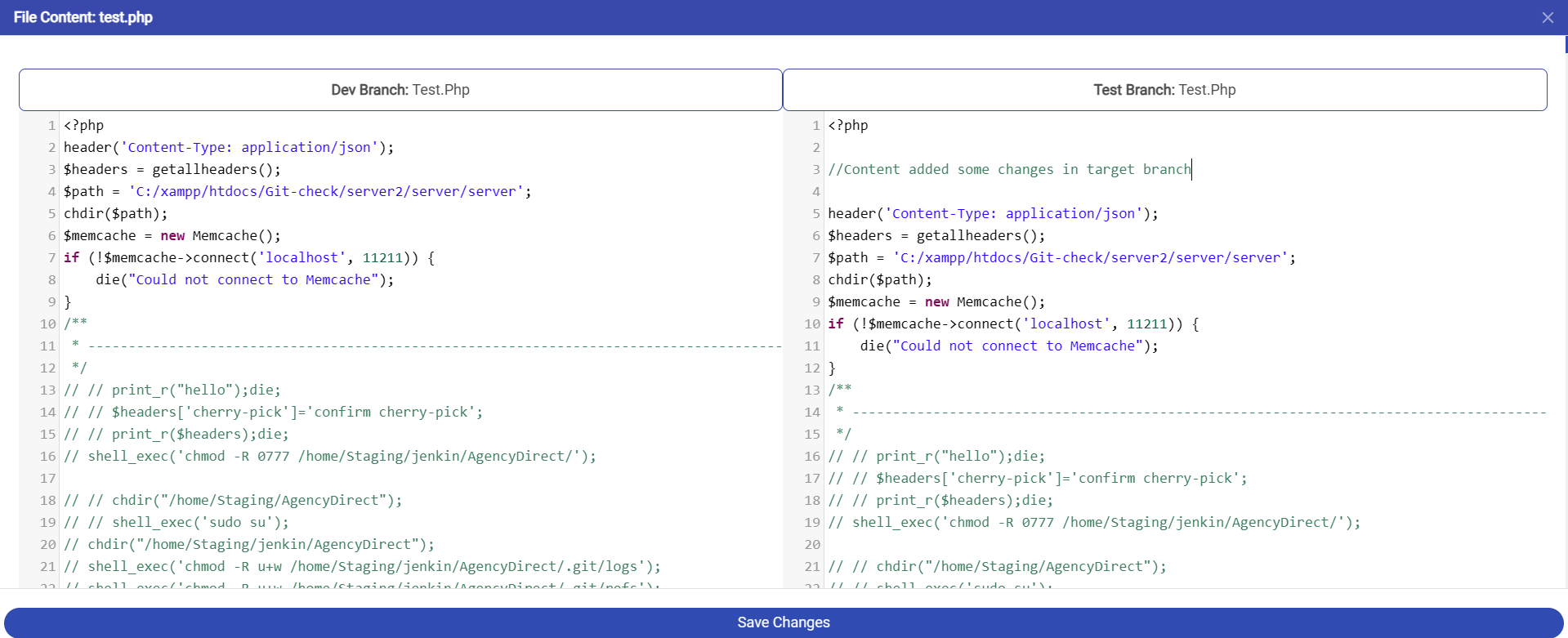
- Click Save Changes.
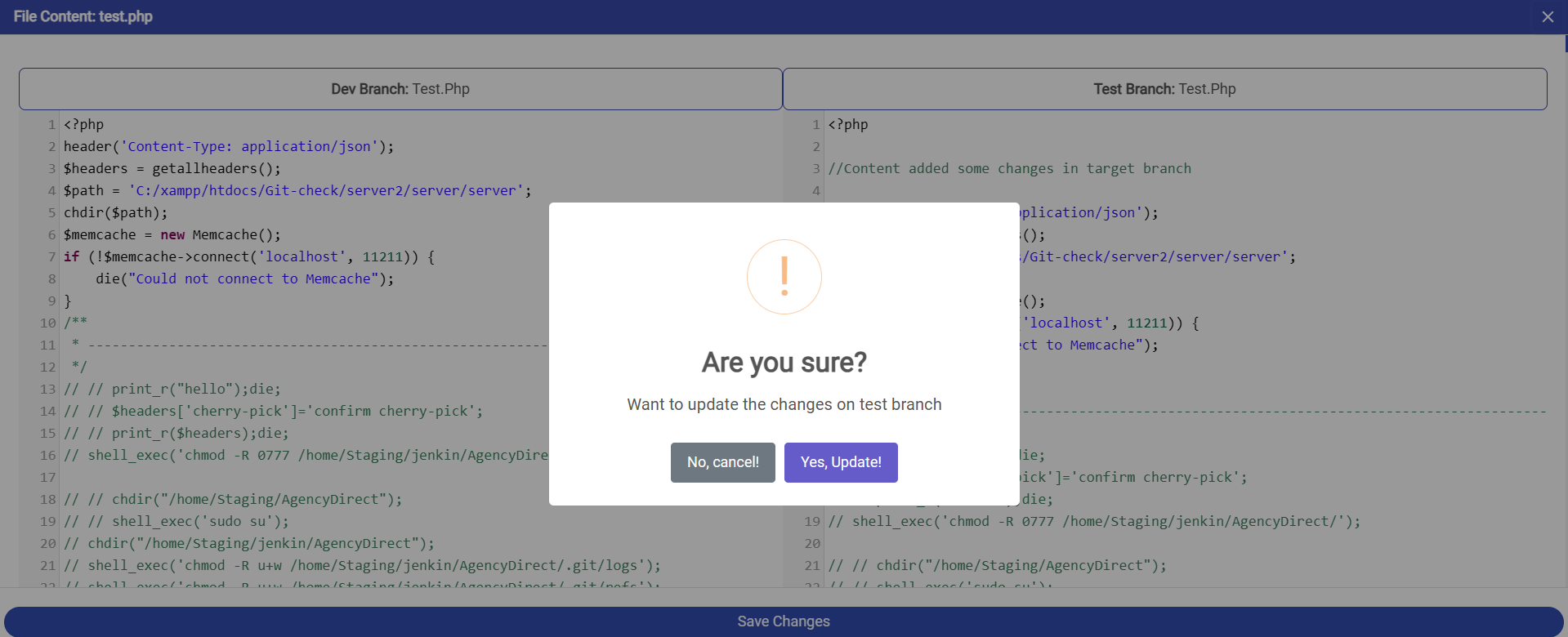
- Enter a commit message and confirm.
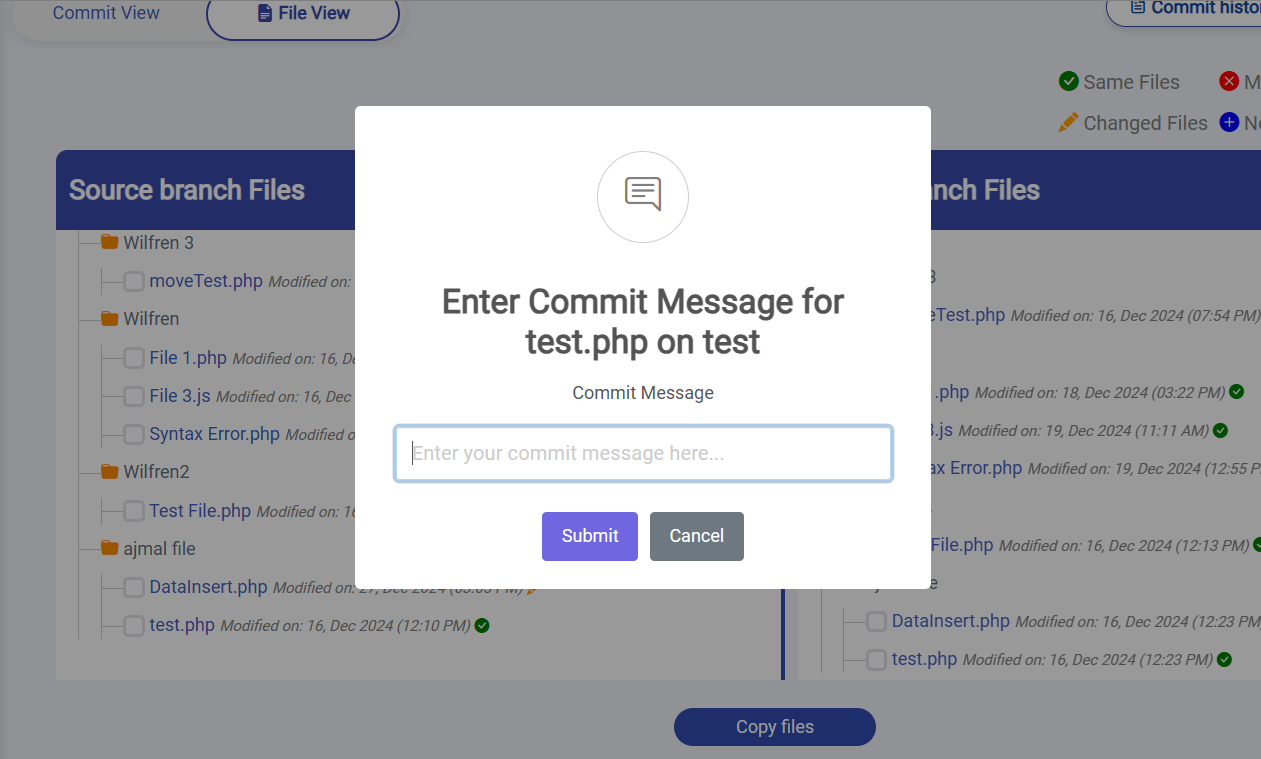
- After submit it save and give success response.
- Modify the content in the target branch pane.
- Copying Files
- Select files to copy by clicking checkboxes.
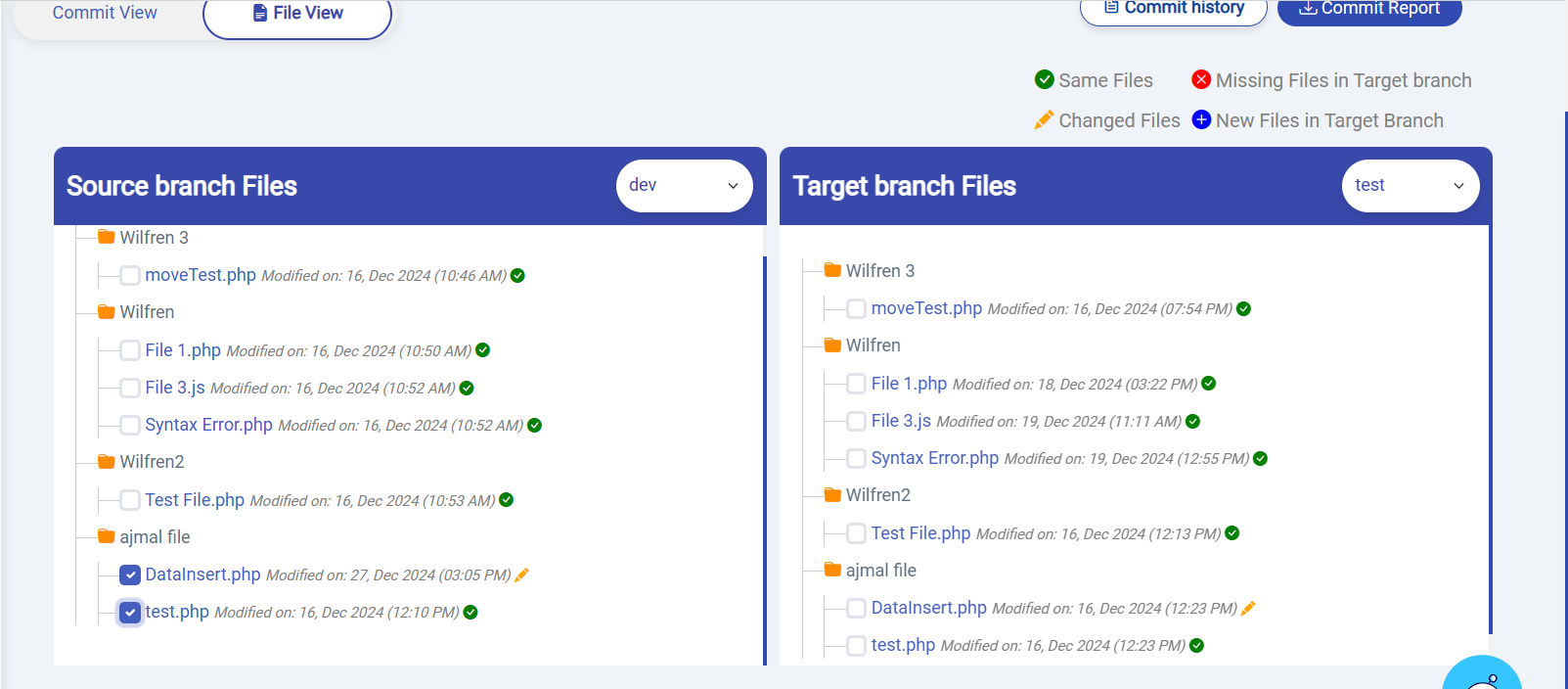
- Click Copy Files.
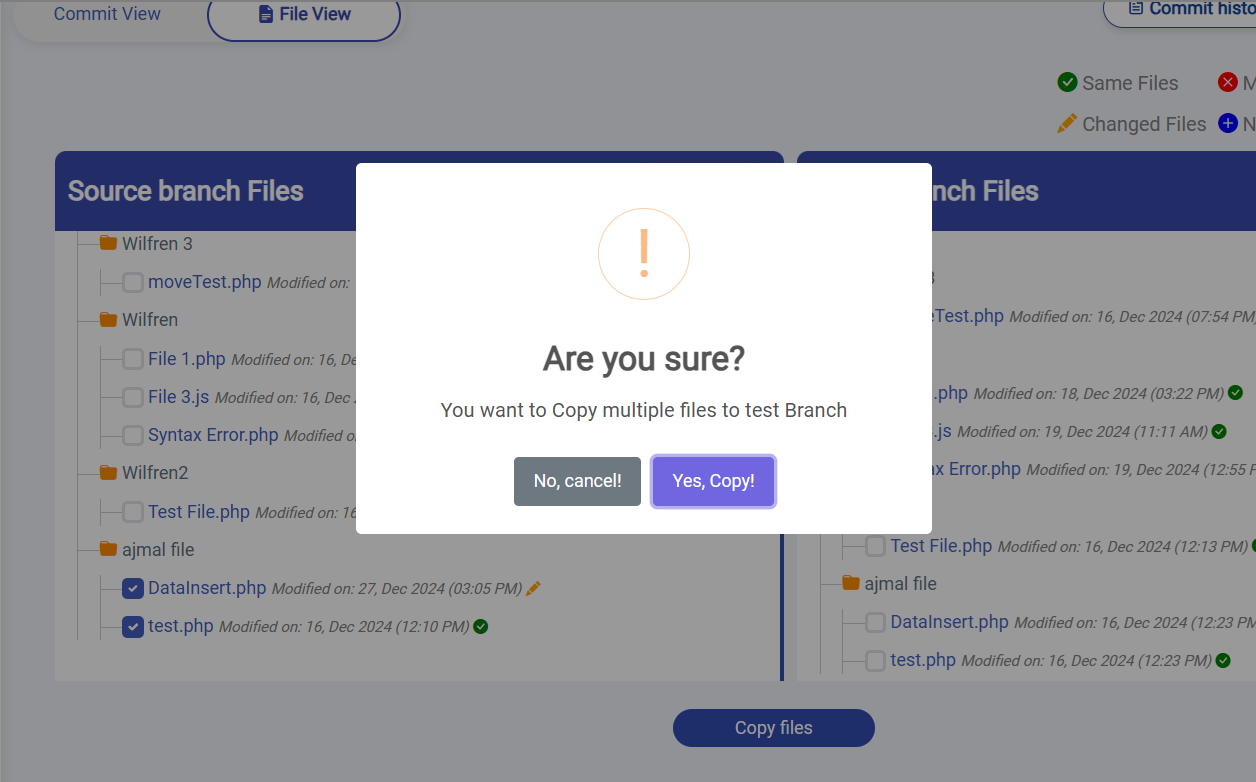
- Provide a commit message to confirm the operation.
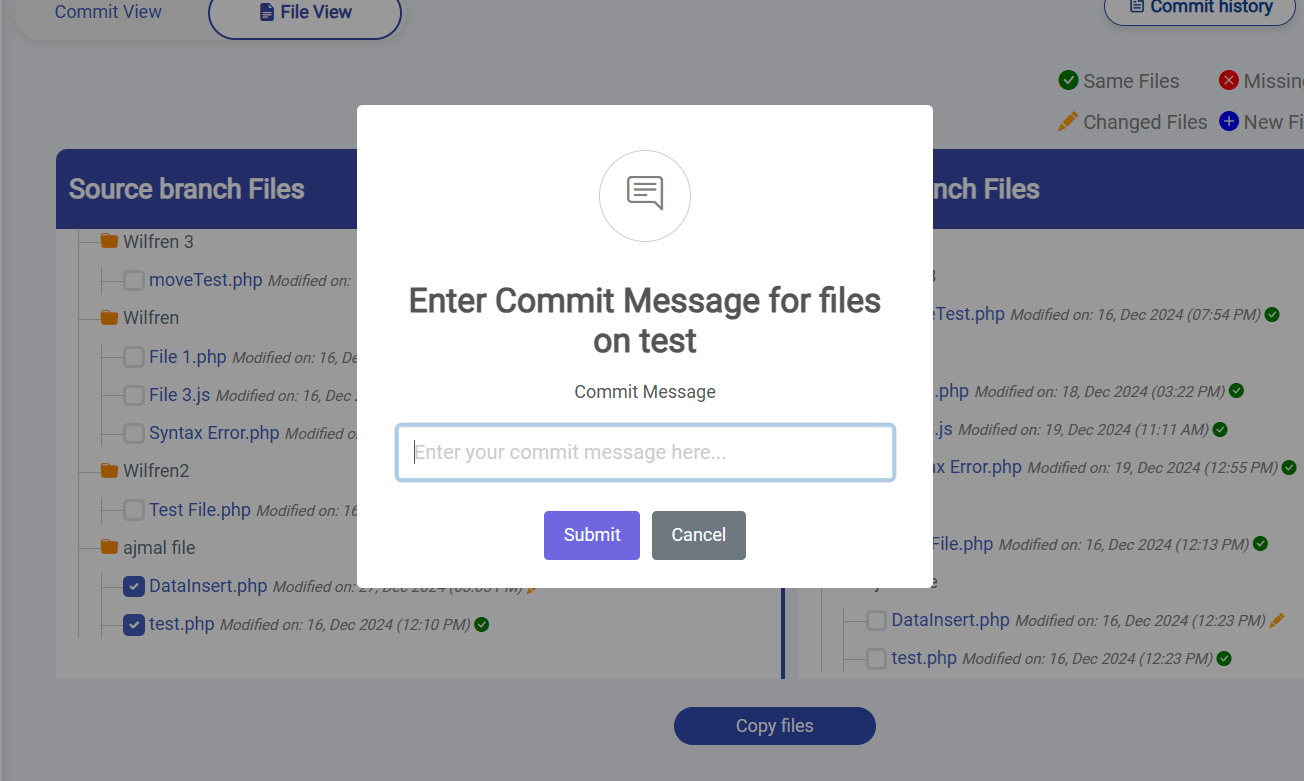
- Select files to copy by clicking checkboxes.
- Viewing File Differences
- Use the API to compare file contents between branches.
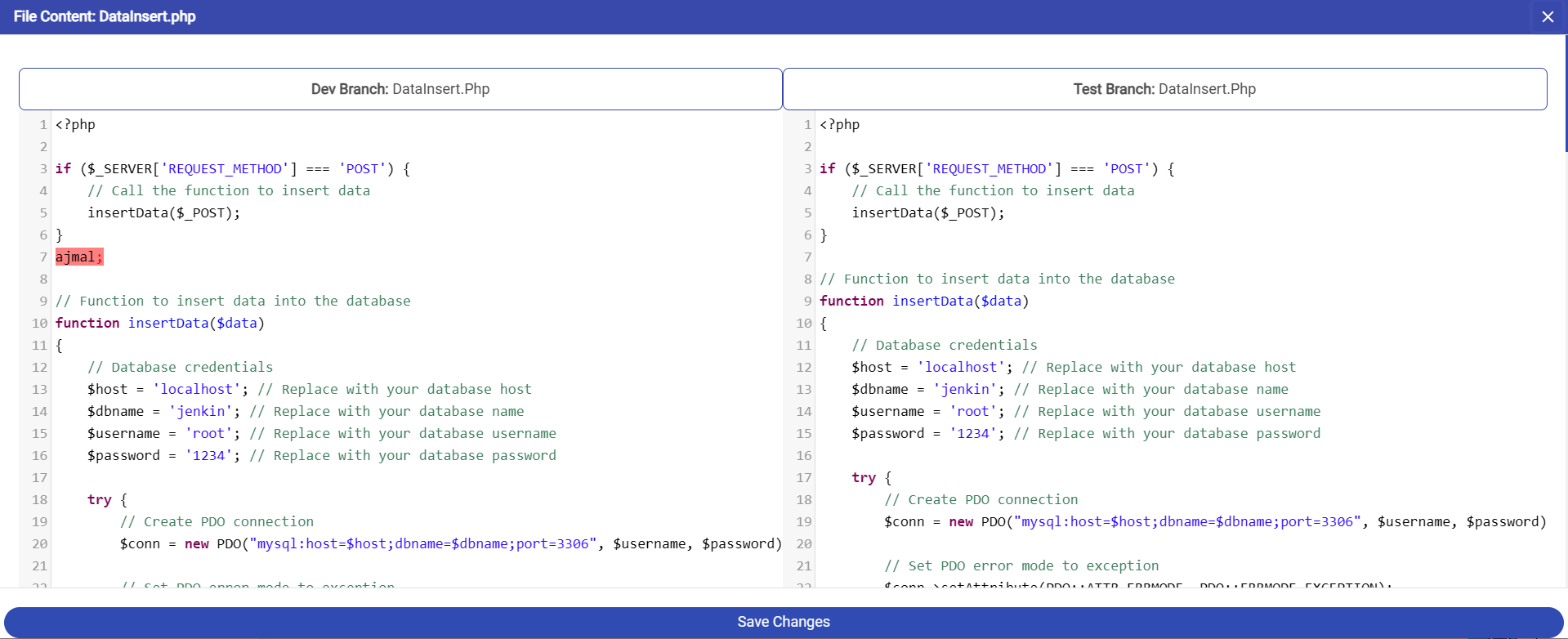
- Handle cases where files are missing or parameters are invalid.
- Use the API to compare file contents between branches.
- Scroll Synchronization
- Interact with the dual-pane view.