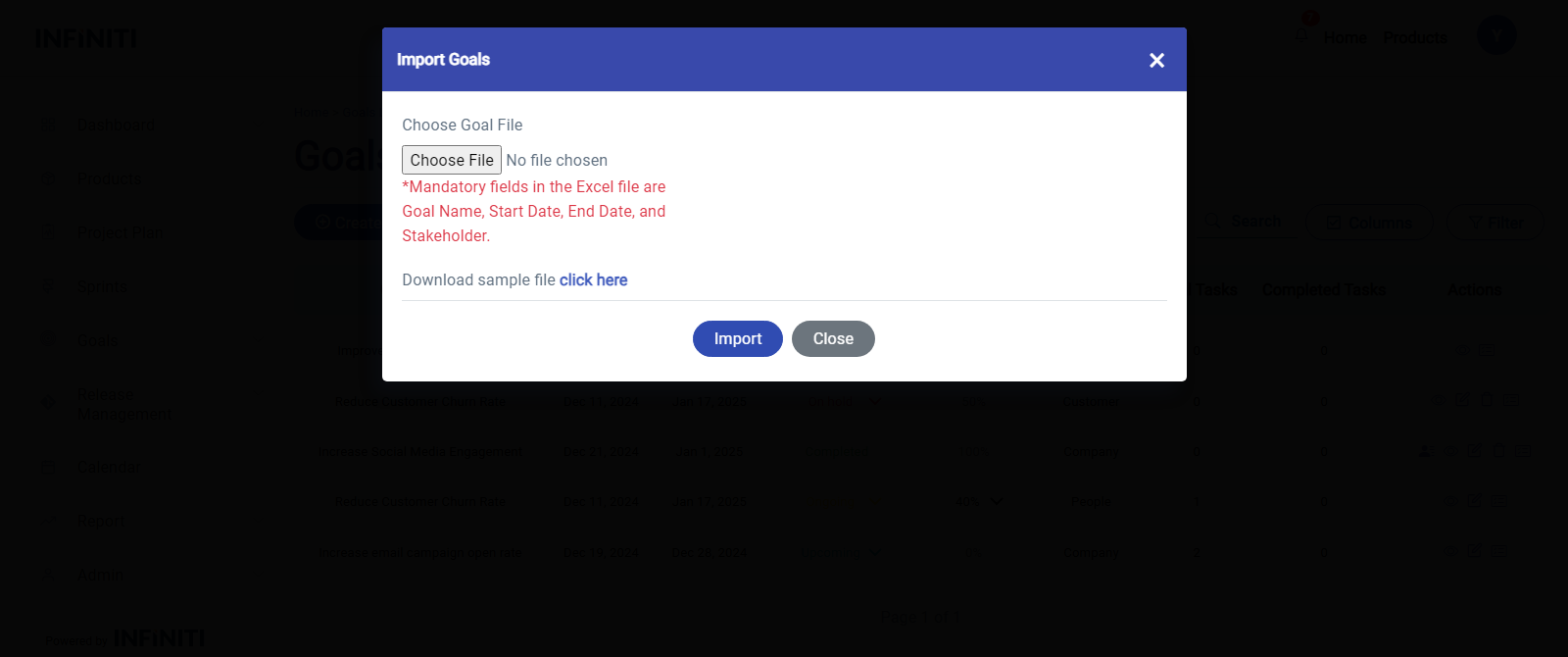
By clicking the Import Goal button, the “Import Goal” popup will be displayed.
The following popup is the “Import Goals” modal which is used to import the goals.
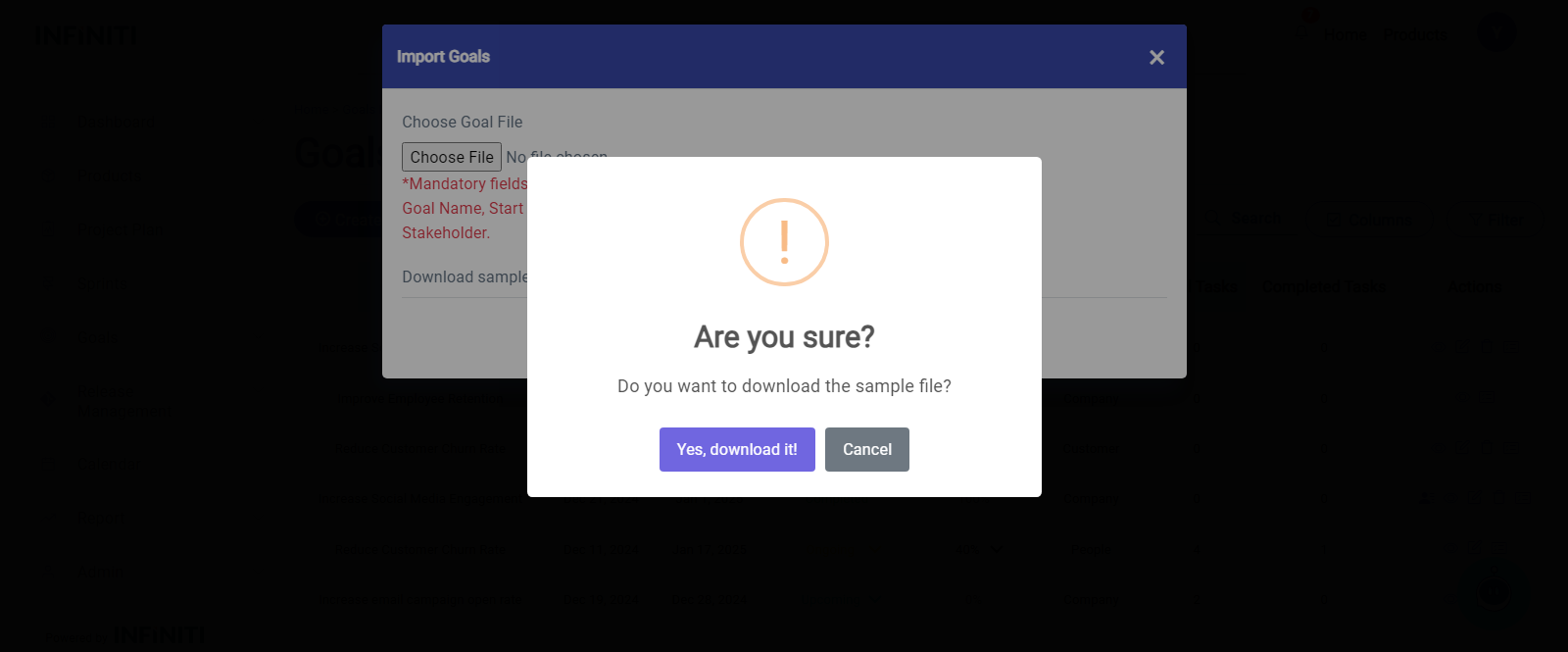
Download Sample Template: For a sample template, click ‘Click Here’ to download the file. This template contains the required columns and format for your data to be imported successfully.
Prepare the File: Ensure that the data in the file follows the template format. Each goal should have the necessary details like goal name, start date, end date, stakeholder, and other required fields.
Choose the File: Once you have prepared the file, click “Choose File” to select the file from your device. Ensure that the file is in the correct format Excel(e.g.,Excel) as specified.
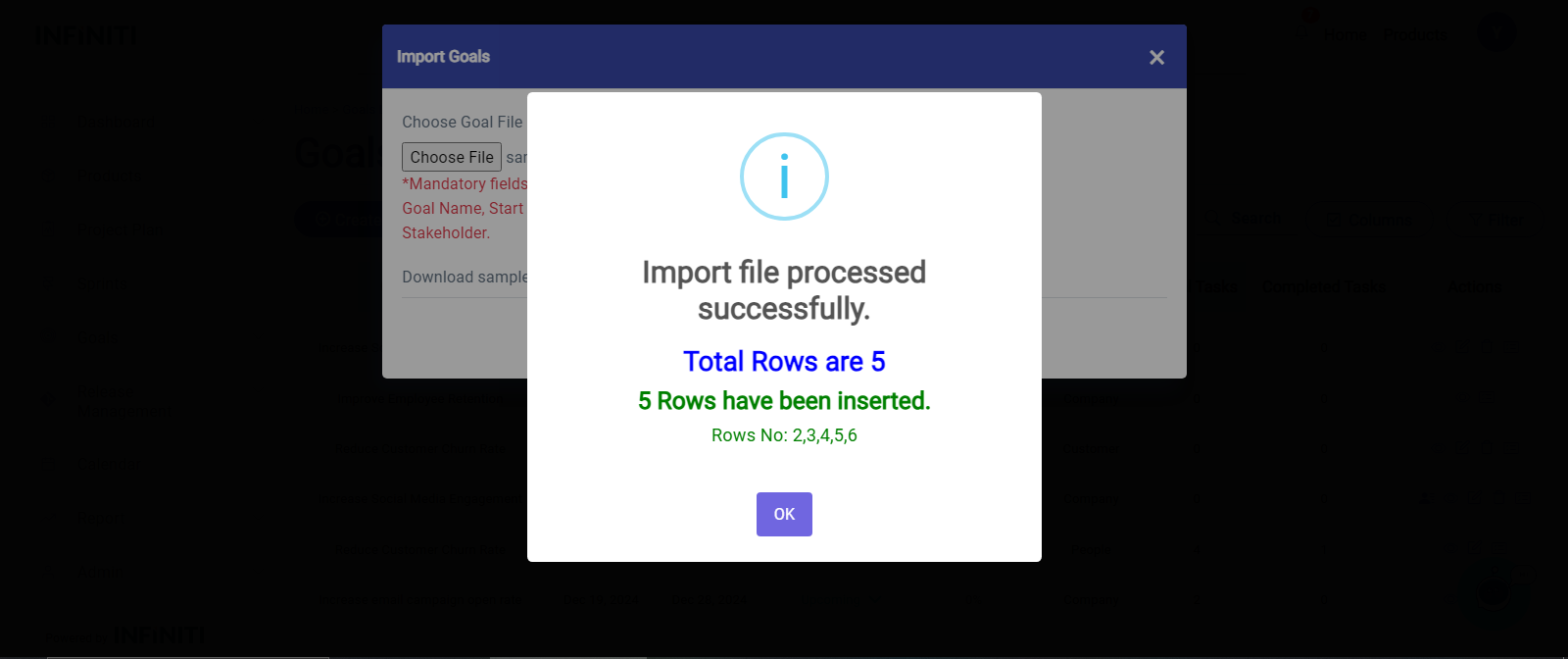
Import Data: After selecting the file, click Import to add the data to the database. A confirmation message will appear once the data is successfully uploaded.
Error Handling: If there are any errors in the file (e.g., missing or incorrectly formatted fields), an error message will appear. You will need to correct the errors and upload the file again.
Confirmation: After successful import, a notification will confirm that the goals have been added to the database. You can now view or manage these goals from the goals list page.