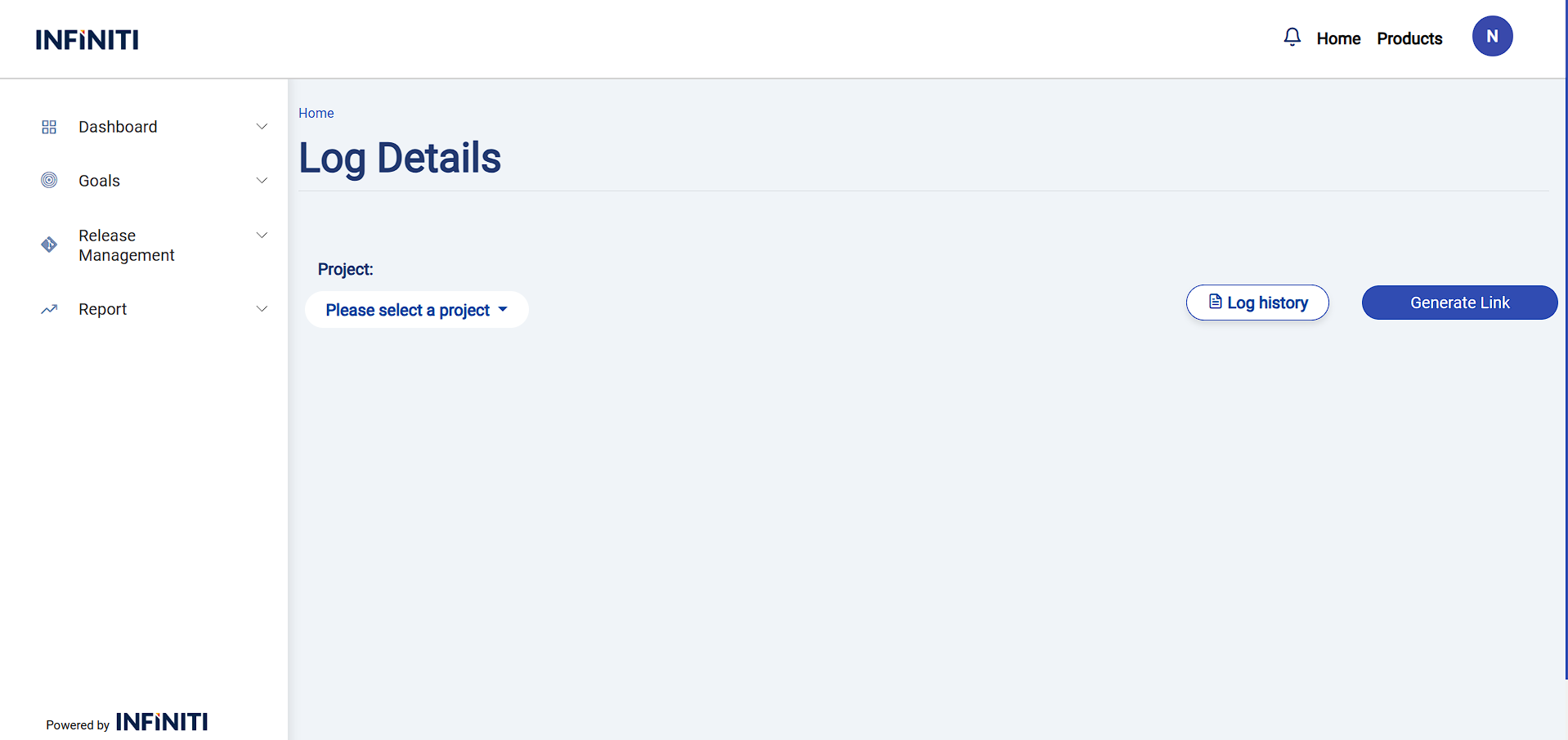
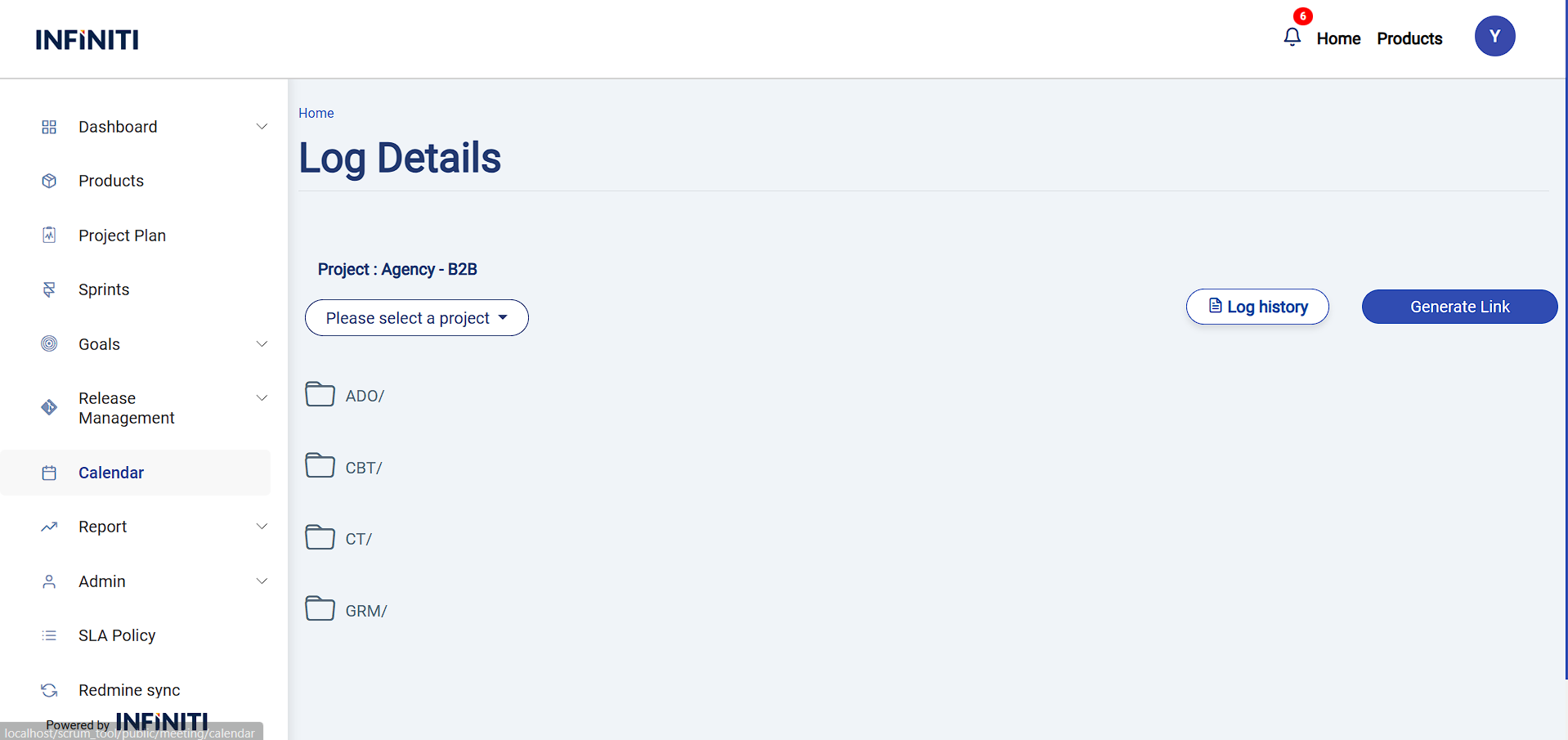
This Log details page efficiently allows managers or developers to access log details from an S3 bucket. Managers have direct permission to access the log details of their projects, while developers can access them only if their manager grants permission. By providing controlled access to logs in the S3 bucket, the system facilitates quick resolution of issues related to the details stored in the logs.
Functionality:
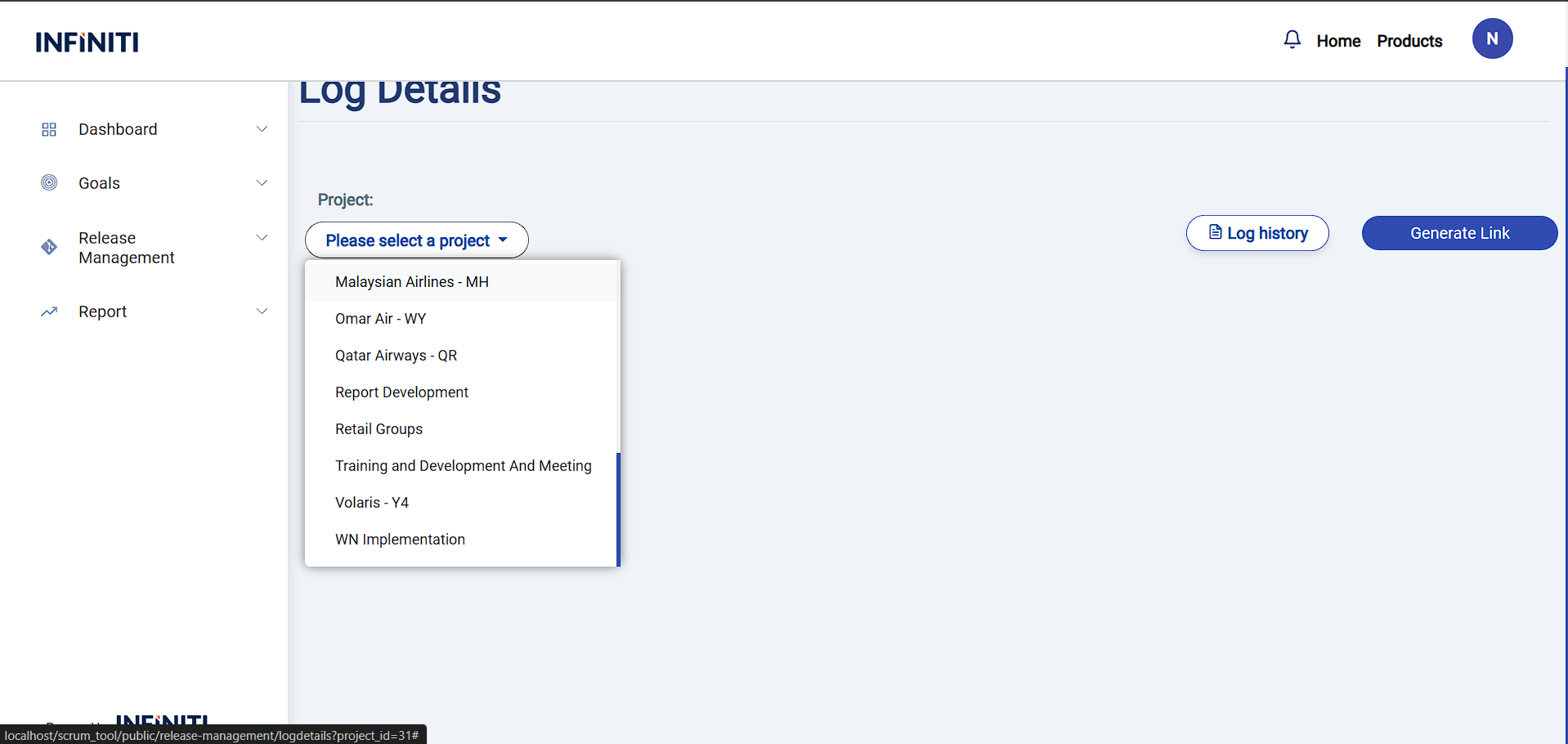
i. Project List
When logged in as a manager, all projects assigned to the manager should be displayed.
When logged in as a developer, only the projects authorized by the manager for log access will be displayed.
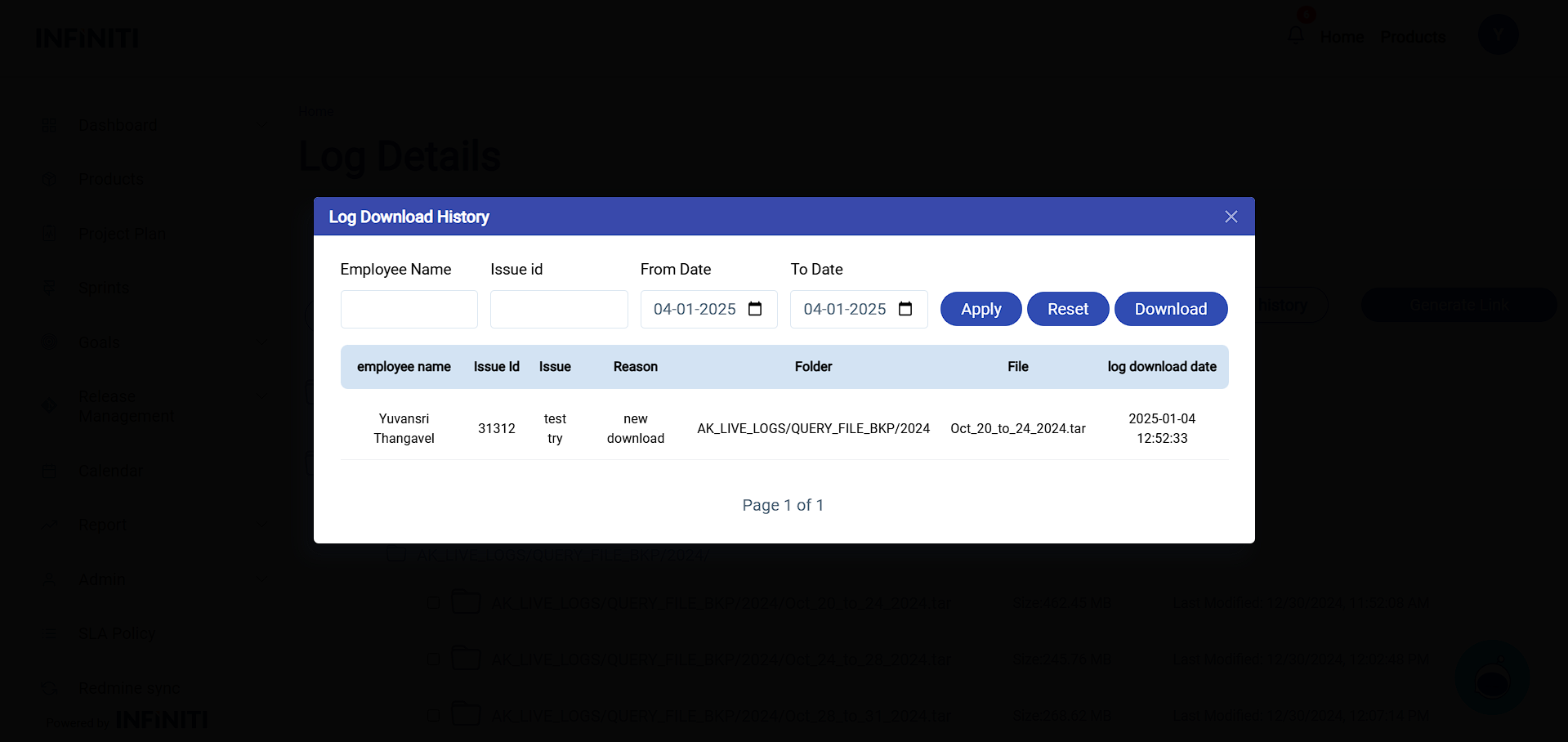
ii. Log History
Shows a detailed history of previously downloaded files.
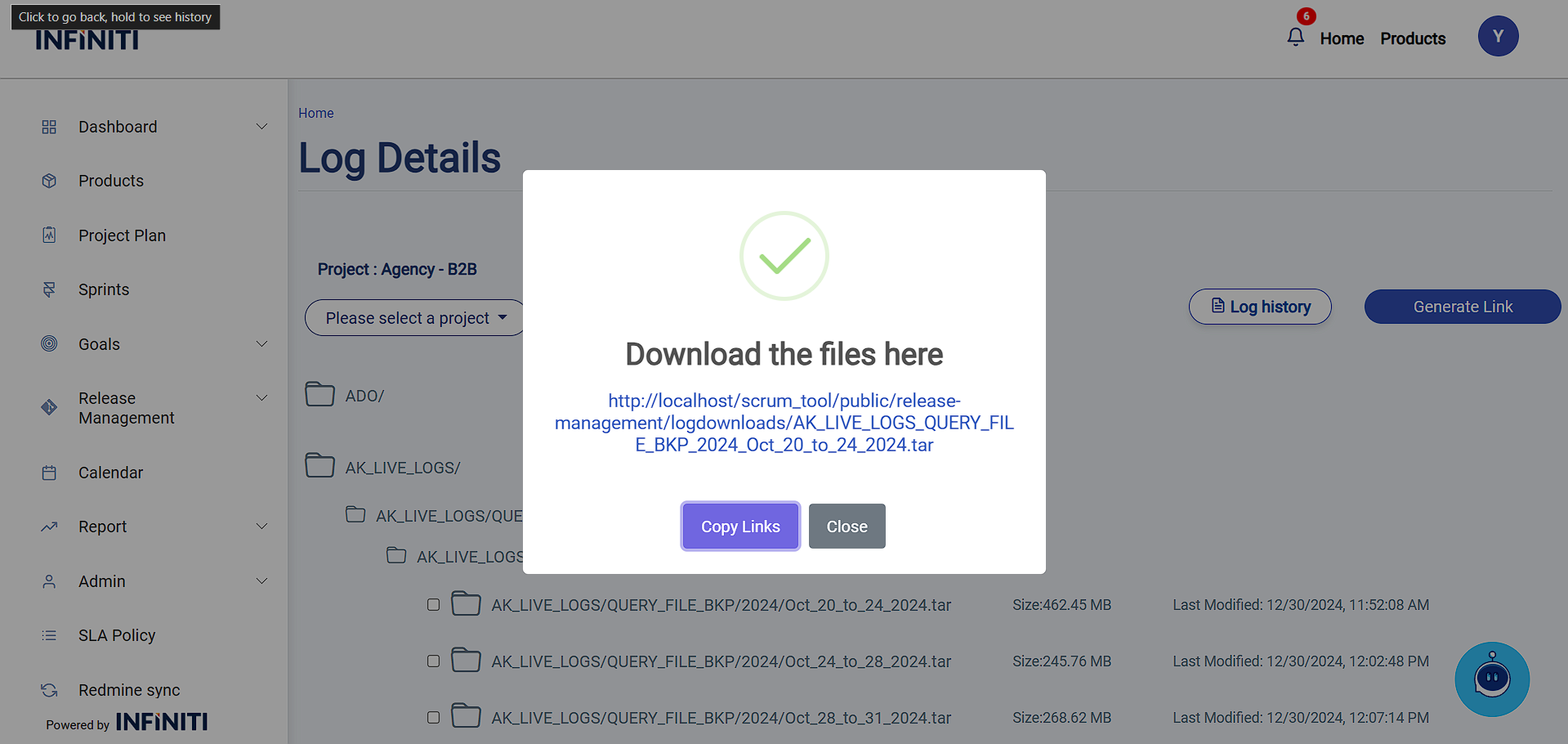
iii. Generate Link
Action: Enables the user to upload the selected file to the server and provides a server link to access the file.
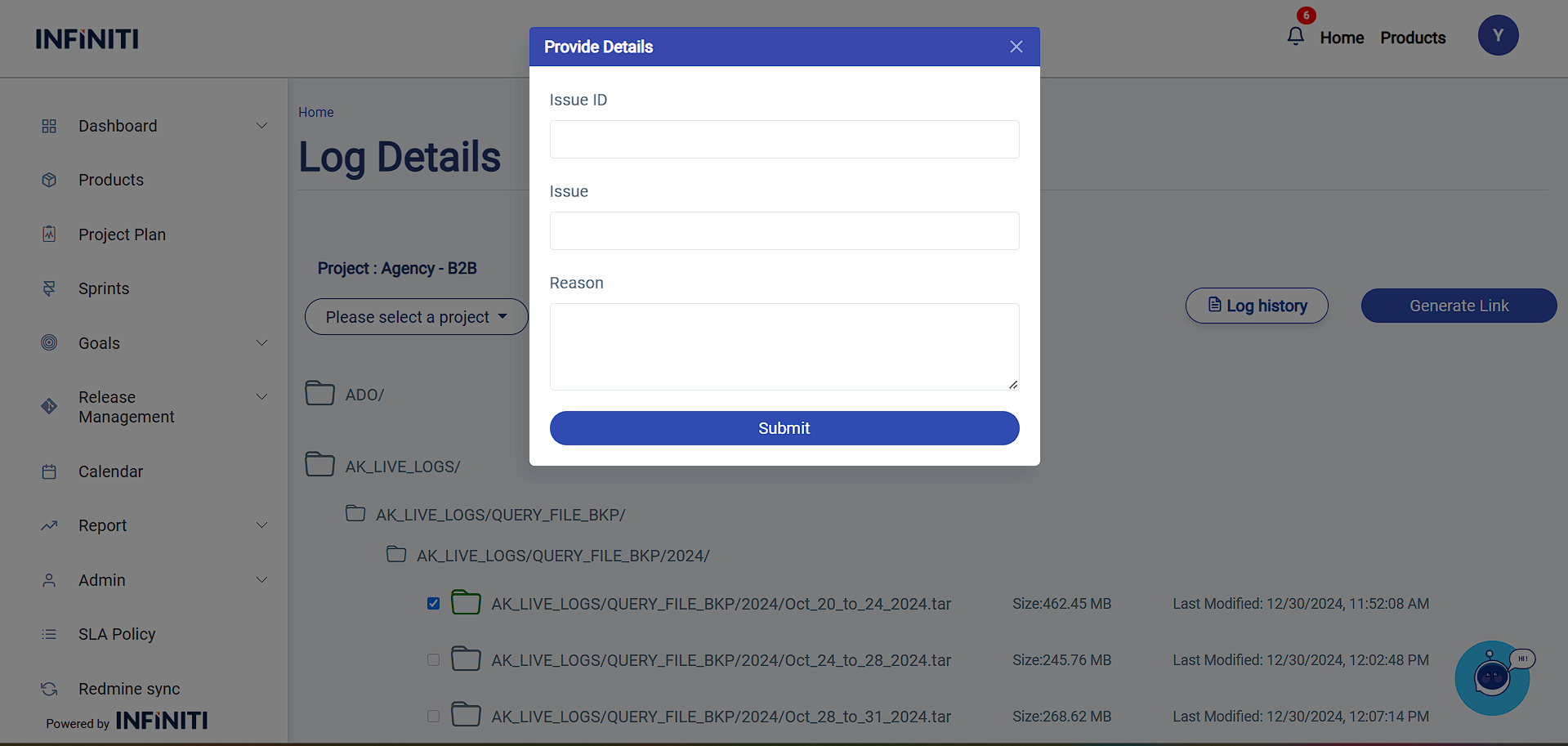
iv. Details
Popup: Prompts the user to provide a reason for the file download, including its related issue and issue ID, to record in the download history before allowing the file to be downloaded.
v. Download Link
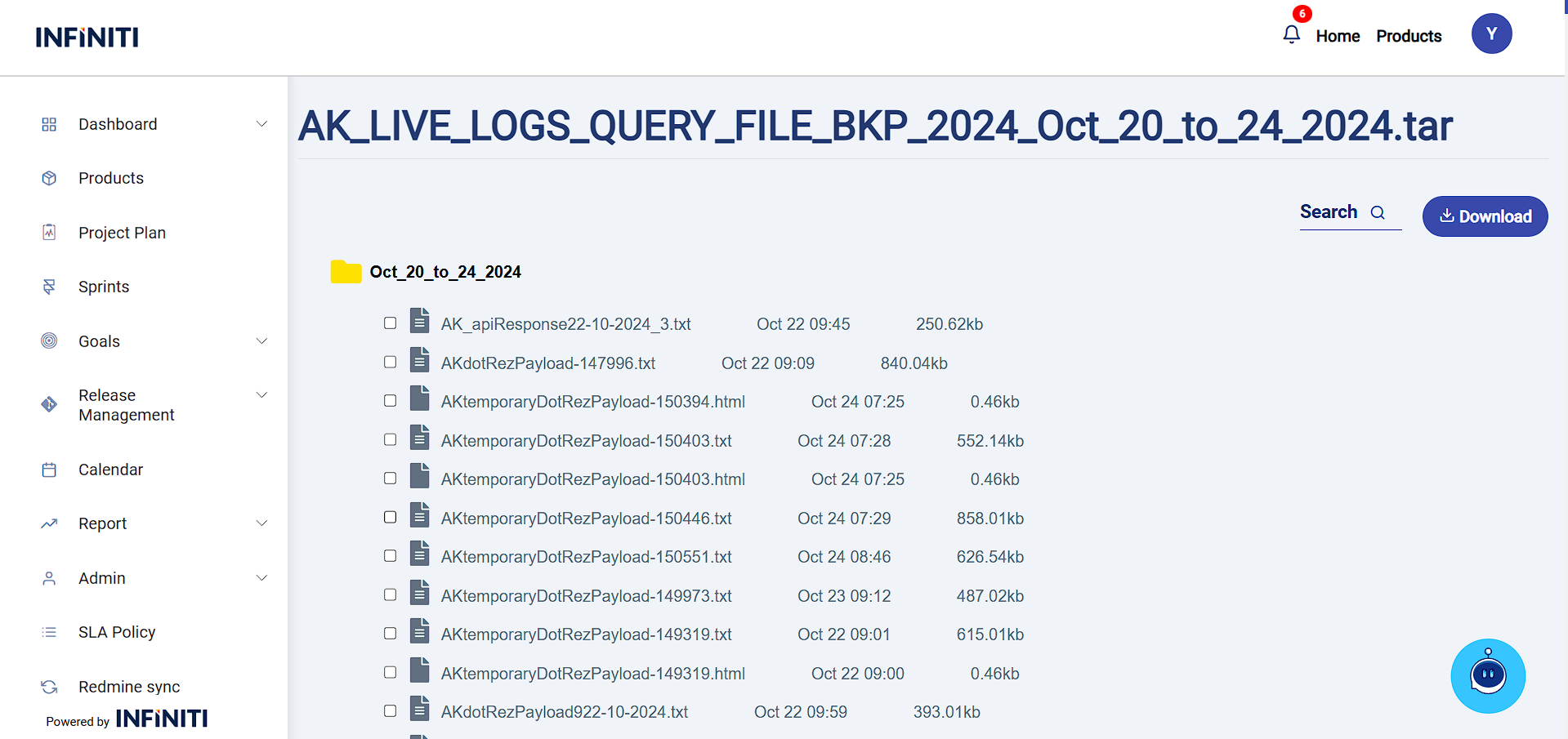
Link: Clicking the link will either redirect to the extracted view of the file if it is a .tgz or .tar file, or directly download the file to the designated downloads folder.
Copy links: Clicking “Copy Links” copies the selected links to the clipboard.
vi. Search
The search option enables users to locate files within folders by using relevant keywords.
vii. Download
Clicking “Download” initiates the direct download of the selected files to the designated downloads folder.
viii. Log Download History
List: The page displays a detailed list of download history, including the purpose of each download and its relevance to the corresponding issue. If you click the Download button, the report will be download and it displays the most downloads list in the excel format, allowing you to quickly access the most relevant and recent files.