
- By clicking the backlog item name will display the detailed view page of a particular backlogitem.
- On clicking backlog item name the detailed view page given below will be displayed.
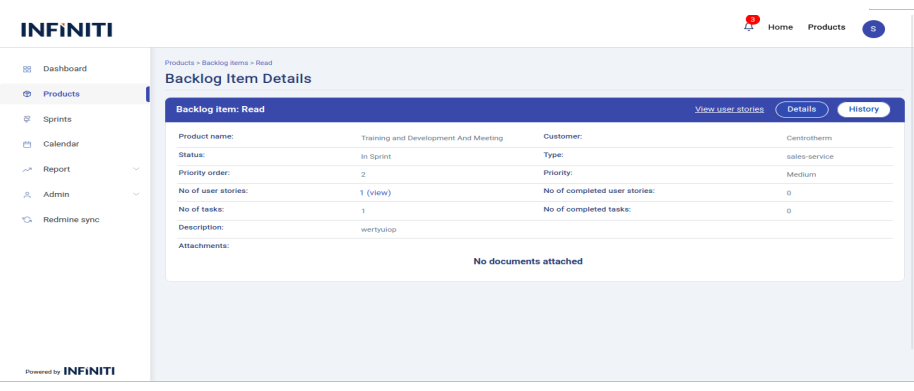
The backlog item details page contains all the information about a backlog item,documents attached with that particular backlogitem,link to the user stories page,history tab for displaying the history of a particular backlog item.
The below backlog item details page contains the following details
Product name
customer
status
priority order
No. of user stories
No. of completed user stories
No. of task
No. of completed task
Description .
Attached document will displayed and we can view and download the attached files
History
- By clicking the history button we can move to the history page.
- By clicking the “History” button the below history page will display.
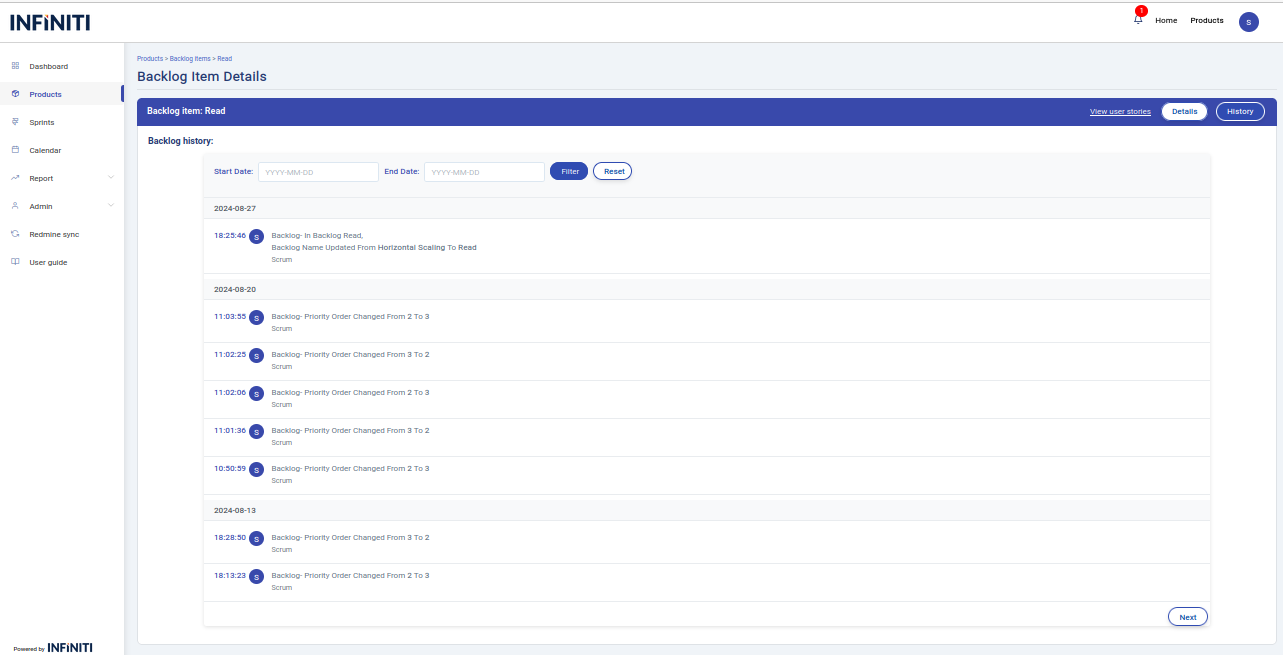
- This history page is for displaying all the actions performed inside a backlog item including
- Updation of backlog item.
- Grooming history(Refinement)
- Addition of user stories.
- Updation of user stories.
- Deletion of user stories.
- Addition of tasks.
- Updation of tasks.
- Deletion of tasks.
- The history page contains pagination if the no of data is more than the no of items per page the next button will be displayed by which we can move to the next page.
- The history page contains the filter by which we can able to view the history from and to a particular date.
- When there is history data found for the mentioned date in the filter no data found will be displayed