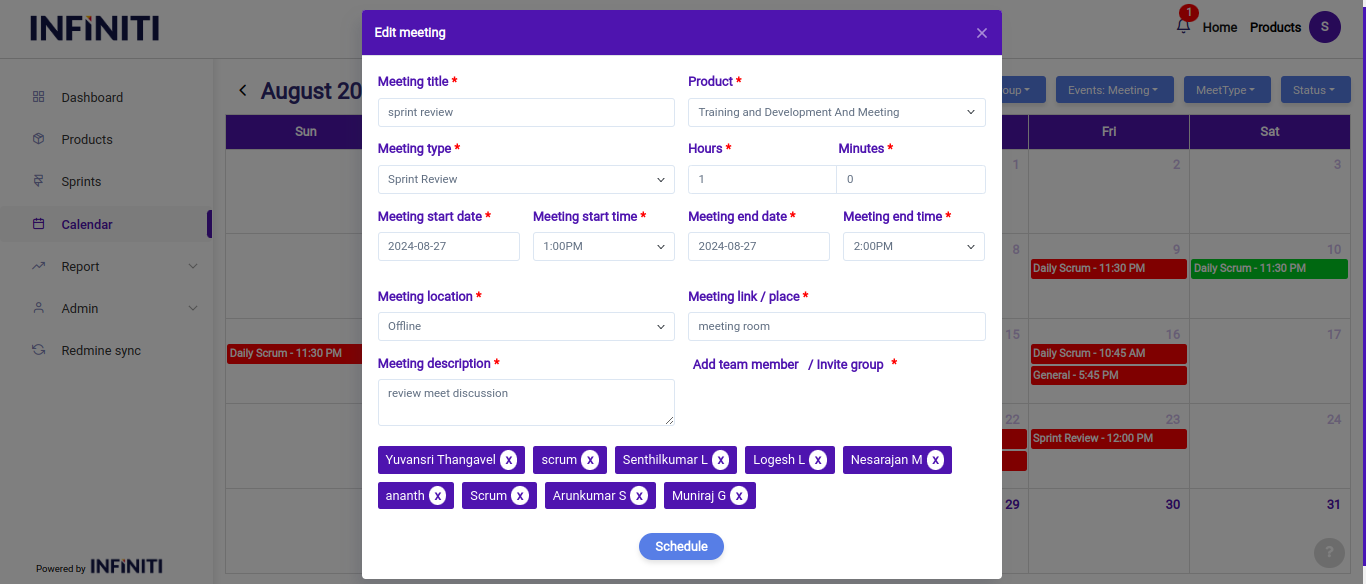
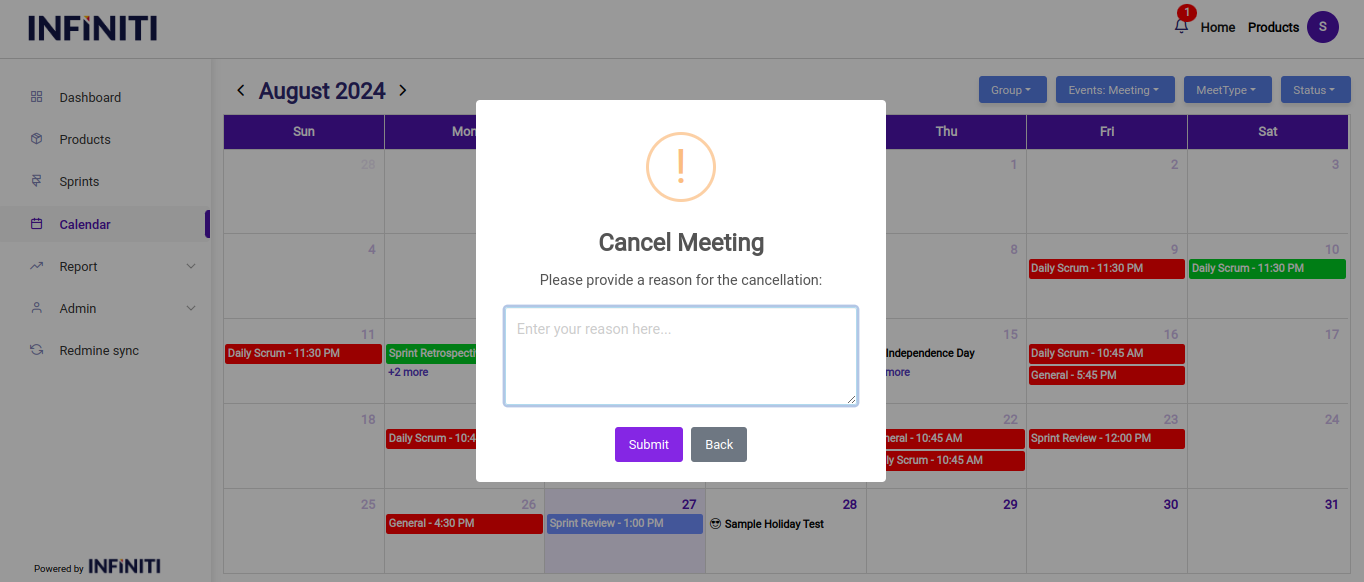
The edit and cancel meeting functionalities provide users with the necessary tools to make adjustments or cancel meetings as needed, while maintaining transparency and clarity.
The “Edit” button is available only to the meeting creator, allowing them to modify the meeting details such as the title, date, time, location, members.
Editing a meeting ensures that the latest information is accurately reflected in the calendar, preventing any confusion or scheduling conflicts.
Making changes:
The meeting creator can easily adjust any details using the provided form fields. Changes can be as minor as updating the meeting time or as significant as altering the team members.
Once changes are made, the creator can save the updated meeting details, which will automatically notify all members of the modifications.
Confirmation of edits:
After saving the changes, a confirmation message will appear, ensuring the creator that the meeting has been successfully updated. Members receive updated meeting invitations reflecting the new details.
ii. Canceling a Meeting:
Cancellation reason:
To cancel a meeting, users must first enter a valid reason in the provided text field. This reason helps to communicate the rationale behind the cancellation to all members and can be useful for future reference.
Confirmation:
After entering the cancellation reason, the user must confirm the action by clicking the “Submit” button. This step prevents accidental cancellations and ensures that the decision to cancel is deliberate.