
iv. Task Delay Notification:

1. Notification Context
The notification highlights tasks that are overdue or at risk of delay.
It includes essential details like the milestone and task name, as well as the date from which the delay started.
2. Example Notifications
Notification 1:
Task Name: Document Analysis
Milestone: Milestone 1 – Discovery Workshop
Delay Start Date: November 15, 2024
Action Needed: The task requires immediate attention to update its status and mitigate further delays.
3. Purpose of Notifications
Timely Communication: Alerts team members and managers about delayed tasks to ensure transparency.
Proactive Action: Encourages users to update the task or take corrective measures.
Accountability: Assigns responsibility to specific milestones and tasks, helping track delays effectively.
4. User Flow
Notification Trigger:
The system generates a notification when a task crosses its scheduled deadline.
Notification Display:
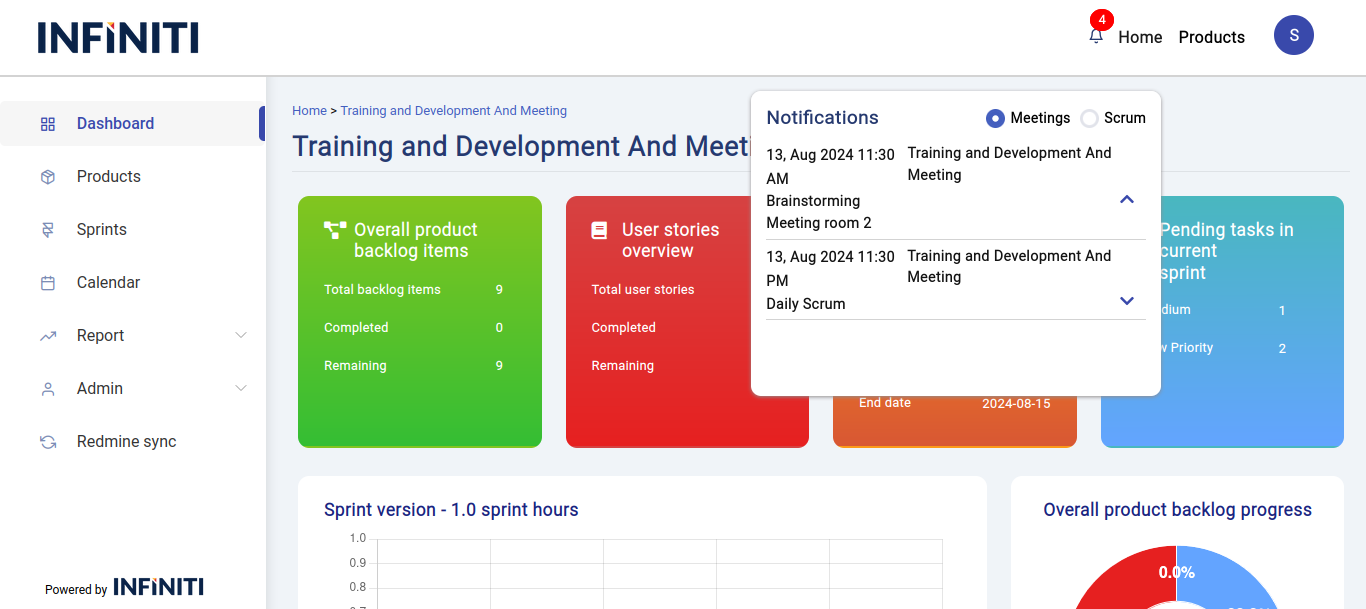
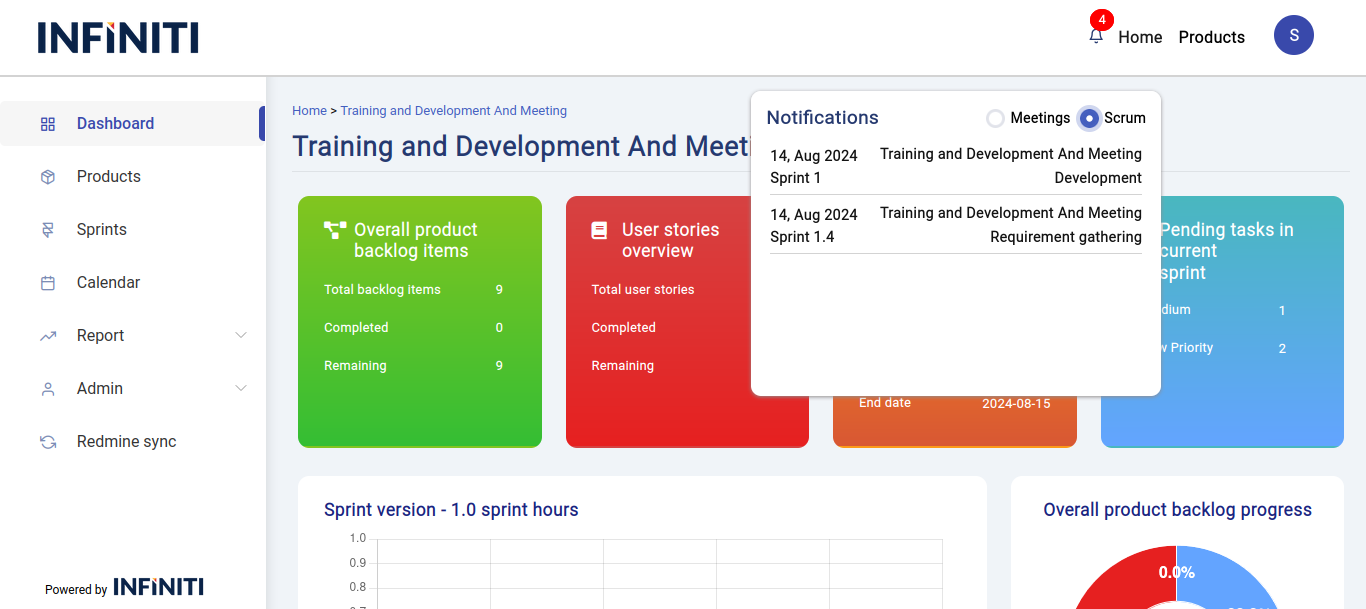
The delayed task notifications are displayed in the Notifications section of the Scrum tool.
Each notification is marked with an alert icon ( ) to draw immediate attention.
User Action:
Users can click on the notification to view detailed task and milestone information.
Updates can be made directly from the notification or the respective task page.