
1. Manage users page view
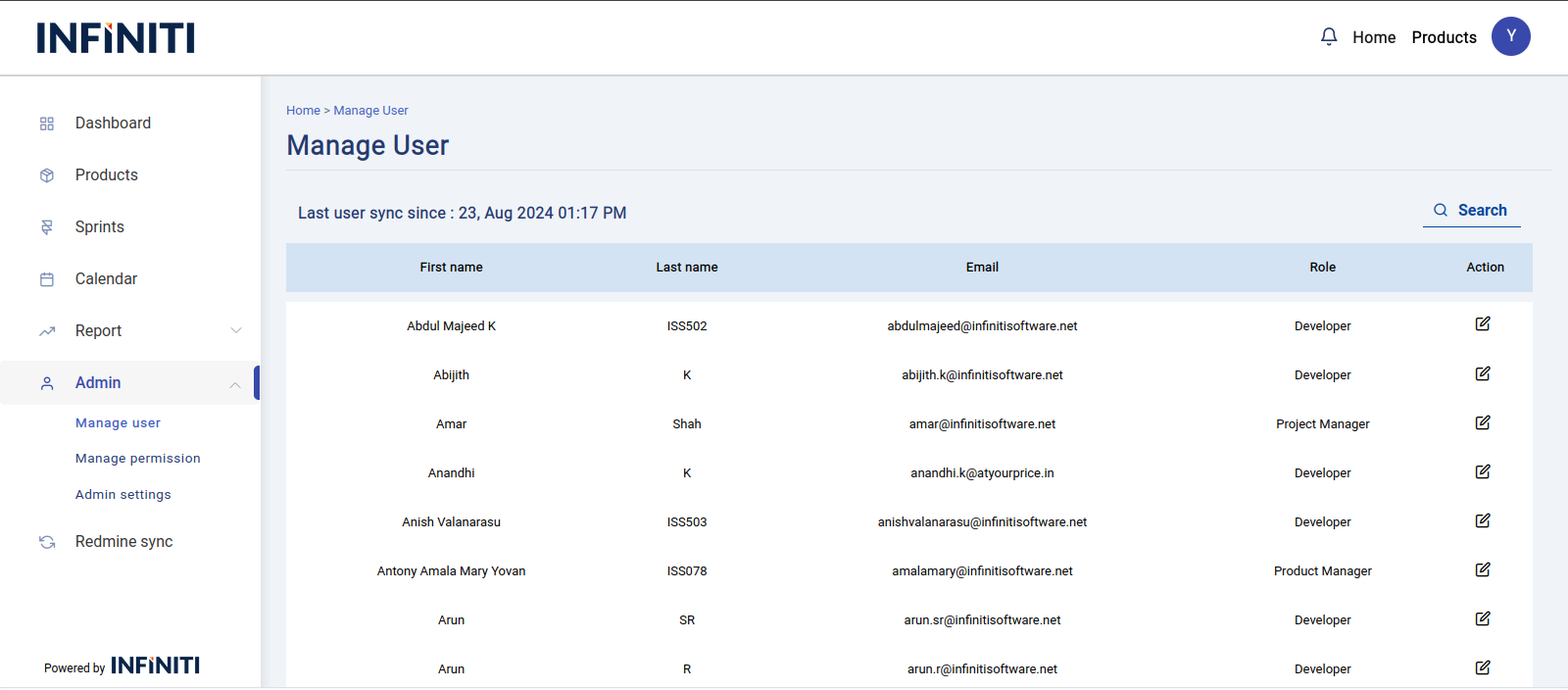
The Manage Users page provides a comprehensive view of all users synchronized from Redmine, displaying essential information such as their first name, last name, email address, and their corresponding roles based on Redmine’s user roles.
Functionality:
i. User information display
- The page lists all users imported from Redmine, showcasing their basic details including First Name, Last Name, Email, and their assigned Role.
- The roles displayed are directly mapped from Redmine’s user roles, ensuring consistency in access and permissions.
ii. Pagination
- The user list is displayed in a table format, with a maximum of 10 users per page. Administrators can navigate through the user list using the “Next” and “Prev” buttons located at the bottom of the table to view additional users or return to the previous page.
iii. Sync information
- The page also shows the date and time of the last synchronization with Redmine, providing administrators with up-to-date information on when the user data was last refreshed.
2. User search functionality
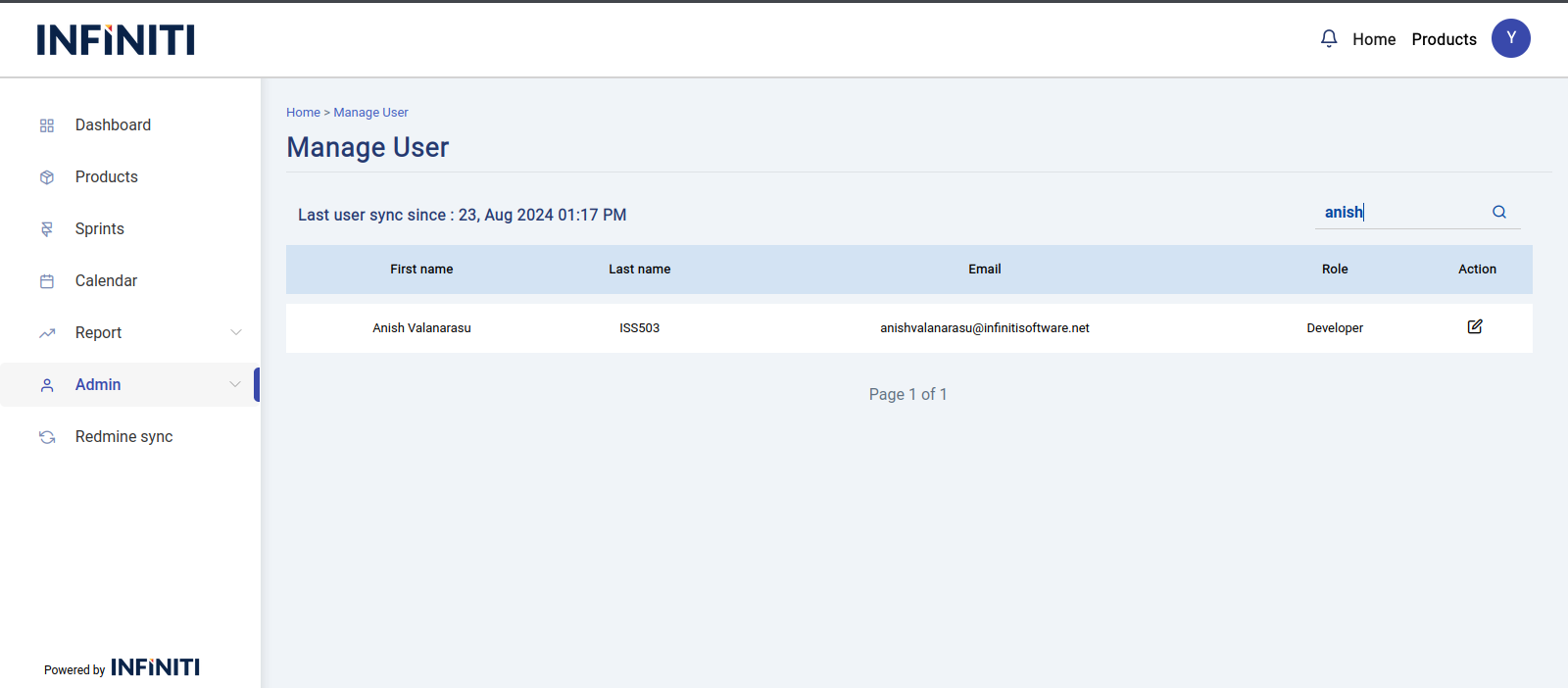
The Manage Users page includes a search feature to quickly find specific users. It also gets the user which is not in the table and dynamically fetch and displays from the database.
Functionality:
i. Dynamic search
- The search bar allows administrators to quickly locate a user by entering their first name or last name.
- The search function dynamically retrieves and displays the user’s basic information from the database, making it easier to manage large numbers of users.
3. Changing roles for users
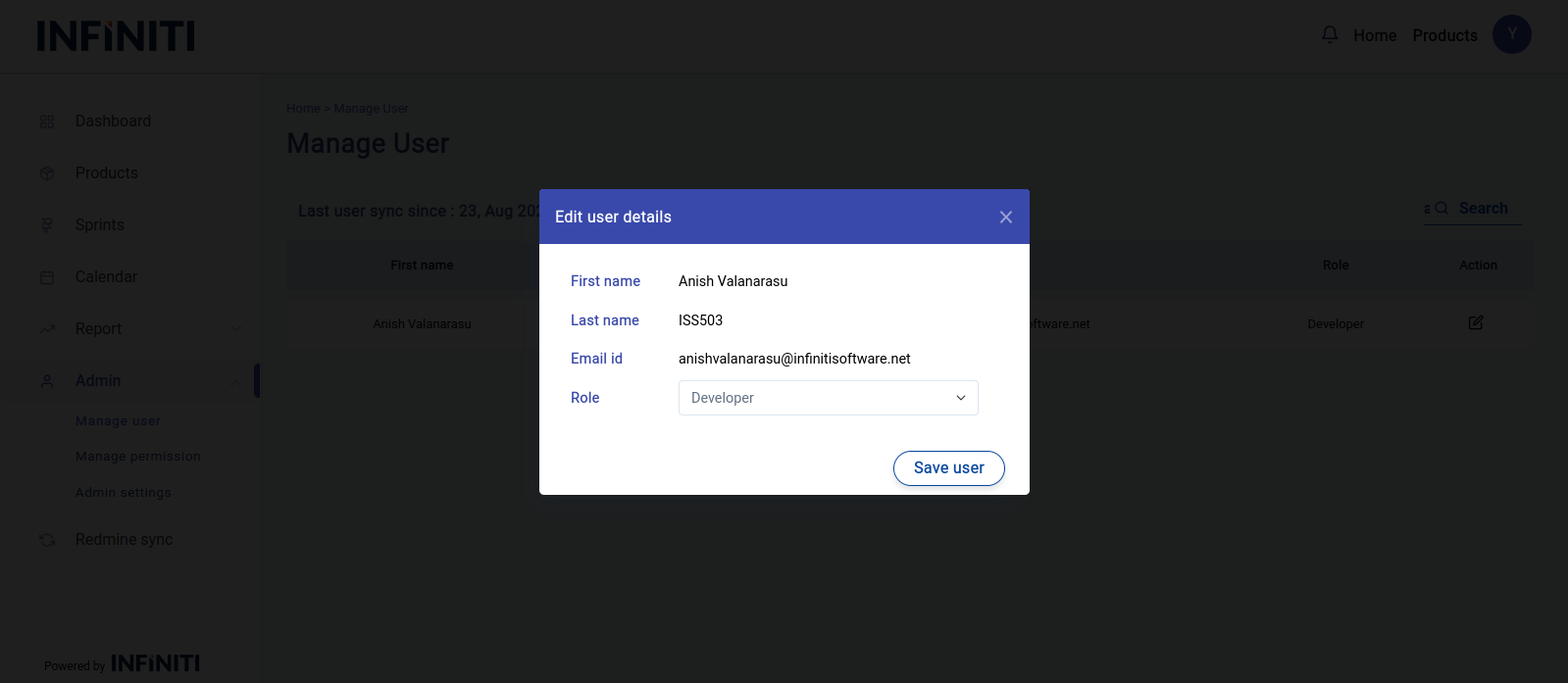
Administrators can easily change user roles directly from the Manage Users page, aligning user permissions with their responsibilities within the organization.
Functionality:
i. Edit user roles
- Administrators can search for a user or browse through the user list. By clicking the “Edit” button in the action, they can modify the user’s role. Once the desired role is selected from the dropdown menu, the changes can be saved, granting the user access to the appropriate functionalities within the tool.
ii. Role options
- The dropdown menu for roles includes all roles from Redmine as well as additional roles specific to this tool, such as “Scrum Master,” providing flexibility in assigning user permissions based on organizational needs.